
What is one of the first things that you teach people who are moving from Autocad to Revit?
"When making changes in Revit, DO NOT delete and replace elements - you should always modify the original elements even if it takes longer"
Why is that? Because you never know what data or hosted elements are attached to existing elements - so if you "Delete and Replace" you might lose the data or hosted elements.
- What does the middle initial of BIM stand for? "Information".
- Without "Information" you are just working with a 3D Building Model
Revit Mirror Command
Revit is a BIM program, Right?
So you would imagine that it's fundamental command structure would work towards maintaining the BIM concept?
Unfortunately the "Mirror" Command in Revit doesn't follow the BIM rules.
It does not just mirror the selected element(s) - it copies and deletes original, even when Copy is unticked.
- Select an element
- Check it's Element ID

- Mirror the element (with "Copy" unticked)

- Check the Element ID of the mirrored element
- Aargh, it is different

What does this Mean for your model?
Cut elements are no longer cut when mirrored
Joined elements are no longer joined when mirrored
etc
To test this:
- Create a new family that has "Cut with Voids When Loaded" enabled:
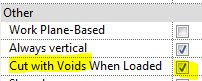
- Place a solid and void in the family (not intersecting each other)

- Load the family into a project
- Place a component where it intersects with another element (in this example, a wall of the same material)

- Join the component and the other element (wall)

- Cut the component and the other element (wall)

- Mirror the component (No copy)
- Component is no longer joined or cut

Compare to other Revit Commands
- Undo the mirror command
- Test the Move and Rotate commands (no copy)
- Join and Cut are maintained


Hosted Elements are Deleted by Mirror Command
- Add a dimension (or tag) to the component
- Mirror (no copy) the component
- If you are lucky you might get a warning about the impending loss of the hosted dimension

What to Do? Is there a Workaround?
The first thing to do is to contact Autodesk and request that they fix this un-BIM-like behaviour
Despite this problem having existed for over 20 years, it will surely be fixed promptly for you if you ask nicely.
In the meantime . . . . .
There is another way to mirror components in Revit:
Control the Mirror Command
Families can have their own built-in mirror/flip controls.
In the family editor, place a "Control"


- Reload the family
- Select the component
- Check its Element ID

- Click on the Mirror control
- The component will flip around its origin point
- Check the Element ID
- Woohoo - it is the same!
- And the Join and Cut are maintained

Flipping Hosts
Test the flipping control with a hosted element (dimension)

- It is not guaranteed to maintain the dimension, but you have a much better chance

Conclusion
Is this going to help you?
Maybe:
- Obviously it only allows you to flip components one by one.
- As the flip controls will mirror about the component origin, it may not end up exactly where you need it - but you can then move it
- It will try to maintain any cutting and joining that you have done
- It may warn you that joined elements no longer intersect - and you should have the option to unjoin or maintain the join (if the elements will later intersect again)
- I have not tested the implications for Dynamo - I have no idea if it is possible to access the flip controls within Dynamo.
Revit Ideas Wishlist
There are already a couple of ideas relating to this on the Autodesk Revit Ideas Wishlist
Mirror Not Copy (for mechanical elements but applies to all)


