
In the process I decided to check if there are any keyboard shortcuts for the 'Move Up and Down' commands. Yes, there are indeed some hidden keyboard shortcuts. This can be very useful as you can keep your finger on the key for multiple moves, unlike using the mouse, which requires a click for each move (a sure recipe for RSI):
[Edit] After further testing prompted by comments by 'infeeeee' I have realised it is simpler to use than I first thought. I knew about the Alt key shortcuts that work on the ribbon (or Keytips as the Autodesk helpfile refers to them) - but I was not aware that they also work on some dialog boxes. I have amended the instructions below accordingly.
Here is how it works:
View Filter tab View Template dialog box

- First select the filter in the list
- Then get the focus onto the icons for up/down by pressing the Tab key, or by clicking on one of the up or down icons
- Then use the following single key shortcuts:
D = Add
R = Remove
U = Up
O = Down
E = Edit
Esc = Cancel
- Alternatively, you can press the Alt key + a shortcut key, which negates the need to get the focus onto the command icons in the first place (much easier)
Line Styles Dialog Box
N = New (Subcategory)
D = Delete
R = Rename
I = Invert
Fill Patterns
Although the keyboard shortcuts are programmed, the Tab key does not put the focus onto the icons, so you cannot use the keyboard shortcuts that way. However, the Alt key works like a charm.
N = New
E = Edit
D = Delete
U = Duplicate
R = Drafting
M = Model
Even the Modify and New Pattern dialogs have their own key tips:
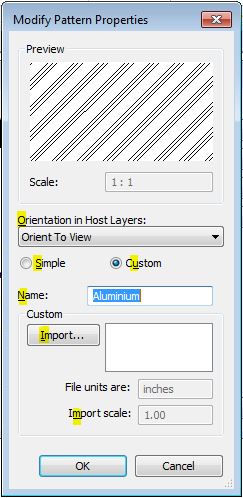

Line Patterns
Line patterns work the same way as the Fill pattern dialog - you have to use the Alt key combination as you can't get the focus to move using the tab key (except at the end of the list)
N = New
E = Edit
D = Delete
R = Rename
Family Editor ‘Family Types’ dialog box.
Some keys are programmed (weirdly) but it is hard to get the focus onto the icons. It is best not to use this because it is too easy to put the focus back into the parameter values and you get into all kinds of trouble changing values and formulas. However, it should be ok to use this with the Alt Key combination.
G = Manage Lookup tables
C = Sort reverse alphabetically
D = New parameter
M = edit
N = New type
R = Rename type
S = Sort alphabetically
U = Up
W = Down
Global Parameter Dialog Box
Yes, the keys are programmed here too - but it is way too dangerous to use, so I won't even list them. Just as an example, D = Delete (now that is scary because D means new parameter, or Add on other dialog boxes). In addition to that, it is tricky to get the focus onto the command icons, and to keep it there, so the chances of wiping out a value or a formula are quite high.[Thanks to 'infeeeee' for the comments that helped me to improve this blog post]
