BILT Speaker

BILT Speaker
RevitCat - Revit Consultant
Showing posts with label display. Show all posts

Tuesday, 1 December 2020

Stair Section Detail Level in Revit

Here is yet another problem with Revit Stairs that really needs to be fixed by Autodesk:  

The view 'Detail Level' display in section is not consistent between walls, floors and stairs (not to mention ramps!):

View Detail Level


When a view is set to Medium or Fine detail level, sections of most categories display the correct materials:

When the View detail level is set to 'Coarse', the cut hatching display of some elements is overridden by the Type properties 'Coarse Scale Fill Pattern'

This capability is available only for certain categories - meaning that the display of stairs is pretty hopeless at Coarse scale


Workarounds

What to do about this?  There are several possible ways to resolve this lack in Revit, but none is very good!

Visibility Graphics

You can over-ride the cut pattern of stairs - but this requires several steps (excuse the pun) on top of just changing one View Detail Level setting:

Due to the fiddly nature of changing this in the view (similar settings may need to be applied to other categories), you would certainly need to include this as part of a View Template - so it could be applied or removed at the flick of a switch.

Filters

You could also try using a View Filter, as it could potentially be applied to multiple categories

This has an advantage in that it is more "discoverable" than searching through all the category overrides - unless you have a gazillion filters applied!

Another advantage in Revit 2021 is the ability to "Enable" or "Disable" the filter without losing the override settings - a very useful new enhancement for Filters.

Downsides

The View Detail Level is very easy to switch on/off - and it affects all categories that have the built-in Coarse Scale override capability.  If you set the view back to Medium, the 'by category' cut pattern overrides get left behind - so you would need another operation to remove those (hence the need to use View Templates).


Another problem with the Visibility Graphics workarounds is what happens when you choose anything other than black solid fill as your hatching override:

If you make it grey . . .


The Stairs will show the joint lines between different materials - you may or may not want this, but it is clearly different behaviour to the Coarse Detail Level control that hides the material join lines and treats it as one material, for a nice clean look.

Of course, this is not helped by the inability to join walls/floors to Stairs !!  You still get the joint lines between those.  Refer to Stair Joint Lines

The Worst Workaround

Filled Regions are extremely useful for patching up Revit's inadequacies, but they are not popular with BIM & Model Managers because they cause so many other problems as soon as a model changes.

Filled Regions allow you to make the hatching look exactly how you want, because they allow some of their edges to be "Invisible Lines" - thus they can appear to join with adjacent "real' cut hatching.

Filled regions are placed per view, so if you have multiple sections cutting through the same or similar parts of the model you may end up with many filled regions.

One possible method to manage that problem is to include them in 'Detail Groups' - but they are also problematic to manage, not to mention a major shortcoming of really slowing down your Revit model if you have too many of them.

Conclusion

Whichever workaround you use the most important thing to do is to follow company standard procedures - and be consistent.  Agree with your workmates on which dodgy workaround to use, and stick to it.  This will make it so much easier to come back to make changes when the model is updated.


Thursday, 1 August 2019

Hide Zero Values in Revit Schedules

Revit likes to show a '0' or '0.00' in a schedule when the value is either zero or blank (sometimes).  This is not always desirable - in some situations you may actually want the schedule to show nothing when the value is zero.

There is a way to do this, although it is not in the units or display settings . . . . .

Blank Value Workaround

Let's suppose you have a 'Numeric value' field that is displaying zero values
  • The first thing to do in your schedule is to create a new Calculated field called 'Blank' (for example) - make it a Number type (if that is what your desired type is)
  • Do not put anything in the formula

  • Create another Calculated Value field - in this example I've called it 'Hides Zeros', but it can be whatever you want the title to display in your schedule
  •  This time give it a formula something like:
    if(Numeric value > 0, Numeric value, Blank)
  • This will hide all zero and negative values


  • If you want to display negative values and only hide the zero values, change the > in the formula to =:
    if(Numeric value = 0, Blank, Numeric value)

  • The next step is to hide the intermediate calculation columns:
  • Go to the Formatting tab and make the 'Numeric value' and Blank' columns hidden


Multiple Elements Per Row

What happens when you have a schedule that displays multiple elements per row, when you have unticked the grouping setting 'Itemise every instance'?
The zeros may return!
In which case refer to this post on Zero values in multiple elements per row Schedules

Thursday, 10 November 2016

Separating Model and Detail Lines in Revit - part 2

A couple of years ago I posted a description of how to distinguish between model and detail lines in Revit.  An anonymous comment rightly pointed out a method that I had missed - probably because it was right in front of me I completely forgot about an extremely useful view property:

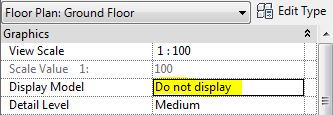
View "Display Model"

The default setting for this property is "Normal", which displays both 3D model elements and 2D annotation, so you don't necessarily know which is which.


One very common problem I find with dodgy Revit models is that people have 'drawn' floor penetrations using model lines rather than using shaft openings, or even worse, have used detail lines, which would only show in that view.

If you select across the whole model and filter out everything except lines, you can at least tell which ones are lines - but not which are model vs detail lines.  This is where the 'Display Model' property comes in handy:

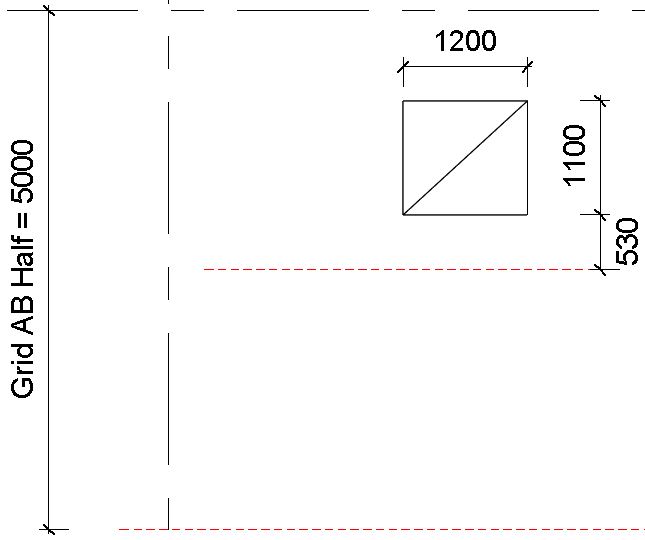
Set it to 'Do Not Display' and all the model elements are hidden

Interestingly, it keeps displaying grids & reference planes, which are neither model elements nor annotation - despite being lumped in with annotation on the Visibility Graphics dialog box.  They are in fact  what I call 'datum' categories.

One problem with this setting is that all the hosted annotation disappears too, so it is not easy to see things in context, nor can you be sure which hosted annotation is now hidden too.  This does have an added benefit of being able to check for 'dummy tags' (generic annotation symbols) and text that has been placed to look like real tags - all the real tags are hidden, and what is left visible is fake (or garbage as far as BIM is concerned).

There is a third option, which is extremely useful:  'Halftone'

This displays the model elements in halftone, and all the annotation as normal.  Now you can clearly see which lines are detail lines - they could be selected and converted to model lines, or better still, replaced by shaft openings.


As a 'Model Manager' you should be using this technique all the time to make sure that users are doing the right thing.  However, it is important to remember to set the Display setting back to normal when finished - better still, set it to normal in the view template and use the 'Enable Temporary View Properties' setting to do a temporary over-ride, which will reset itself when you finish.