BILT Speaker

BILT Speaker
RevitCat - Revit Consultant
Showing posts with label format. Show all posts

Monday, 23 September 2019

Inconsistent Units Settings UI in Revit


There are several very different ways of getting to Units Settings in the Revit User Interface.  Most of them are not very intuitive - and certainly they are totally different from each other.

Project Unit Settings

There are 3 different icons on the 'Manage' ribbon, depending on your screen resolution and size:

Largest resolution or screen
 If you are operating on a laptop or low resolution, the icon automatically reduces in size, and you may or may not get a text description:
Medium resolution or screen

Smallest resolution or screen

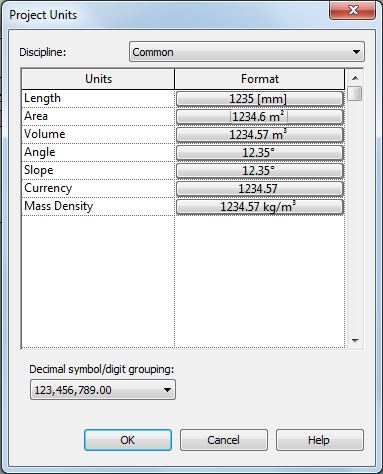
Once you click on the Project Units icon it takes you to the units dialog box, which has a list of different kinds of units:


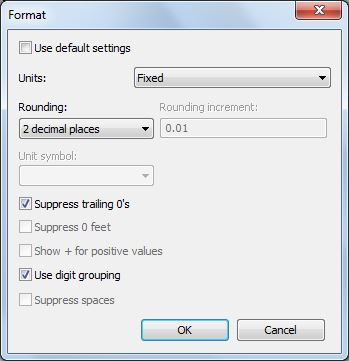
Once you choose a particular unit type, it gives the project-wide 'Format' settings for that type.  Since this is the project settings, the checkbox at the top is greyed out.   Some of the checkboxes are related only to imperial measurements so would always be greyed out for metric users.

This dialog box is the one common UI that appears for all methods of accessing units - but different items are greyed out in each situation that the dialog box appears.


Dimension Units

  • Select a Dimension in the project 
  • Click on Edit Type


  • Click on the Units Setting property
  • This takes you to the Units Format dialog box where you can override the project settings
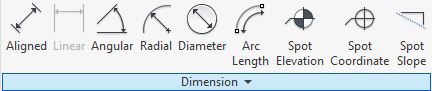
Alternatively you can access this units dialog box from the Annotation ribbon:
  • Click on the Dimensions drop-down arrow
  • Select the kind of dimension you want


Schedule Units Settings

  • In the Schedule Properties, go to the 'Formatting' tab
  • Select a field (on the left)
  • Click on the 'Field Format...' button on the right


  • Once you click on this, you get the standard Units dialog box
  • Typically the 'Use default settings' checkbox is ticked 
  • You can untick it if you want to over-ride the project settings


Tag Units Settings

Refer to Revit's Most Hidden Commands (part 2) for more detail on this.  It is quite tricky to find this setting:

  • Edit the tag family
  • Select and Edit a label

  • The parameter in the label may look like it is selected (on the left), but it is probably not
  • Select the relevant parameter (on left, even though it shows on the right)

  • The 'Properties' icon (a hand) will be enabled
  • Click on it

  • Finally you get to the units settings, which is normally defaulted to 'Use project settings'
  • It is not possible to get to this unit override setting within the project environment (unlike dimensions and schedules)

Summary

Here we have at least 4 completely different ways to access Revit units settings:

Method 1 (Ribbon in the project ):


Method 2 (Dimension Type properties in the project ):

or

Method 3 (Schedule formatting properties in the project ):


Method 4 (Tag properties in the Family Editor ):


Why does something so simple have to be so inconsistent, and complicated ?


Friday, 9 August 2019

Hide Zero Values in Multiple Item Rows in Revit Schedules

Hide zero values in schedules (Previous post)


Following on from a previous post about how to Hide Zero Values in Revit Schedules, I have noticed that it does not work when you untick 'Itemise each Instance' (Multiple items per row) and you set the formatting to calculate totals - the zero returns.

Calculate Totals - Zeros shown
In the example above, you probably would want to show the zeros when calculating totals of different numbers - but there are situations where you legitimately do not want to show the zero.  Here follows an example, and yet another workaround to solve that problem.

Example of Workflow

A situation where you may not want to show the zeros might be when the field is a count of items.  As demonstrated in my previous "Count Dracula" post, it is not possible to include the system parameter 'Count' in a Schedule formula; nor is it possible to make a 'Count' value of zero - the workaround to that problem is to create your own 'MyCount' parameter, as described previously.

In this example,  items are to be listed in a schedule with consecutive room numbers - at this stage some of the rooms do not yet have any real items placed in them.  The schedule needs to show all the room numbers, even when not yet furnished.   In order for the rooms to appear in the schedule, a dummy item has to be placed in the room, but we do not want it to be formally counted.
This is where a 'MyCount' parameter is useful, as the dummy items can be forced to schedule with a count of zero.
  • First a 'Schedule Count' parameter has to be created for the nominated categories
  • Set the value to 1 for all items to be counted
  • Set the value to zero for those not to be counted
  • [NB. This could be a Y/N parameter, but that has complications - to be dealt with in another blog post]
  • If it does not yet exist, create a 'Blank' calculated value, with no formula
    (Refer to Hide Zeros)
  • Then create a 'MyCount'  calculated value (Number or Integer)
  • It can be given a formula of:
    if(Schedule Count' = 0, Blank, Schedule Count)

  • The schedule should list a 1 MyCount value for each item to schedule, and nothing for those Spare (dummy) items.

  • Group the schedule by Room Number (no footers)
 
  • Untick "Itemise every Instance"
  • Notice that the MyCount total values are not totalling up
  • Format 'MyCount' to calculate totals
  •  Untick "Itemise every Instance"
  • Aaaargh!   The zeros are back

Workaround

In order to get the number of items in each room to total, you have to add a couple more calculated values - this is where it starts getting crazy!
  • Add another Calculated Value 'MyPerc' or 'MyPercentage'
  • Make it a Percentage (not a formula)
  • Select the field 'MyCount' of which it is to show a percentage
  • Select the Grouping title - 'Room Number' (rather than Grand Total) - so it only calculates a percentage of that Room sub-total

  • Add another calculated value, with a formula:
    if(MyCount/MyPerc = 0, Blank, MyCount/MyPerc)

  • This will show the total count per Grouping (Room) in each row - which looks a bit crazy when each row is listed separately

  • Untick 'Itemise every instance' and it looks better - and without the zeros
  • Do not Calculate Totals for these two calculated values, otherwise it gives wrong totals

  • Hide the intermediate calculated values, and rename the 'MyCountTotal' as desired

Now, if you actually want to show Grand Totals for the Item Count, that is another story . . . .
  • You would probably need to create another schedule that shows 'MyCount' (which gives the correct total), but collapse it down to one row (no sorting/grouping; no grant total) - and align it on a sheet with the column for MyCountTotal.
  • That would also enable you to have bold text for the total
  • However, I am not going to try that here - you are on your own.
[Edit.  A comment from Kovyljan has pointed out that the last method above can be simplified by making the percentage calculate on 'Schedule Count' instead of MyCount - refer to ps Update on Hide Zeros ]

For more information on this technique, refer to an earlier post on using Totals in Formulas *
For more information on creating your own Count parameter

* Thanks to Martijn de Riet of BIMForce who initially posted on his blog a similar solution to another scheduling problem in Revit

Thursday, 12 January 2017

Underline Revit Schedule Headings

I was recently asked if it is possible to just underline the Revit schedule column titles without having all the lines/boxes below.  At first I thought it was not possible, so I figured out a crazy workaround.  As I was checking the workflow for documenting it on this blog I discovered something I didn't know (or at least had forgotten but once knew), which made the solution quite easy.  I have always found that preparing conference presentations is a great way of learning a subject thoroughly - instead of thinking that you know it all.  It seems that writing a blog has the same benefit.

I decided to document the workaround here anyway because someone might learn something in the process, or be able to use it for some other purpose.  If you just want to know the best solution, skip to 'The Correct Workflow'

Underline Workaround Method

When you first place a schedule on a sheet, you get some pretty uninspiring looking graphics - all boxed in, with the heading text centre justified and the body text left justified.
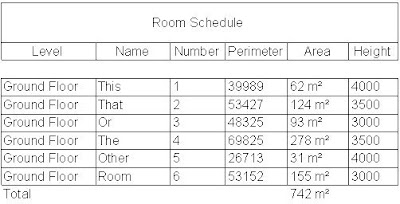
Default schedule appearance
If you look at the schedule 'Appearance' properties, the default settings show Grid lines on, Outlines off.  Depending on your project template, you may have the same text type for all three aspects of the schedule text - in which case it is wise to create separate text types for title, header and body text, making sure they are named clearly.
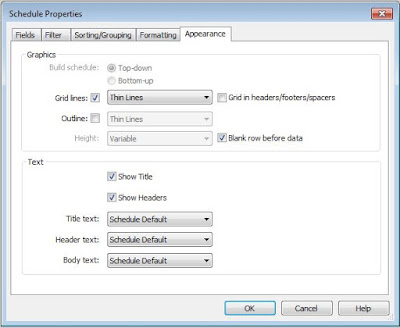
Default schedule appearance settings
 You could try turning on the Outline and hiding the gridlines to see if it underlines the title/header.
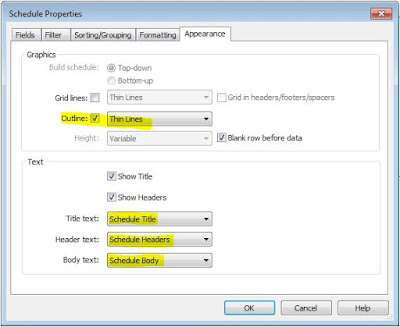
Outline on, gridlines off
Unfortunately it does not underline either the title or headers - those settings are very crude, giving us very little control at all.  The end result is a box around the whole schedule.
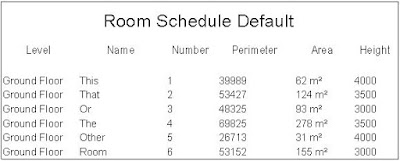
Outline on, gridlines off
The next thing to try is to switch off the outline box, then underline the header text itself.  You could select the header text in the schedule view, and change its font properties
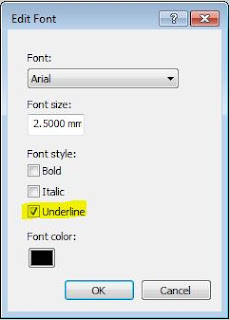
Selected text font properties
However, it is much better practise to use a specific text type for the header and edit the type properties for it - so you can change them all at once without having to select the text in the schedule cells.
Text type properties
The end result is that individual header text words are underlined, which looks awful - we are trying to get one single line under the whole lot.
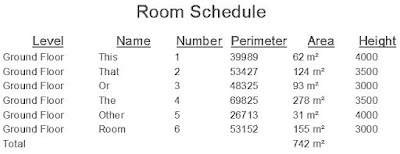
Header text underlined
How about using the schedule formatting tools introduced in Revit 2014?
  • First edit the Schedule Header text type to remove the underline.
  • Then highlight all the header cells by dragging the cursor across them - this has to be done in Schedule edit mode, not in sheet view.
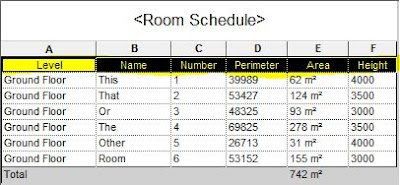
Select all the header text cells
  •  Click on the Borders icon on the ribbon.
  • This opens the Edit Borders dialog box
  • Select the linestyle you want the underline to be
  • Click on the border box to the lower left with cells underlined
  • Click OK
  • Assuming that you switched off the 'Gridlines' and 'Outline' checkboxes, you still won't see the borders on the header cells (or any borders at all).
  • Enable the 'Gridlines' checkbox, and you get all the gridlines back again (not just the header underline borders.
  • This was the point at which a gap in my knowledge caught me out, so I devised the crazy workaround.  I thought that you could not control the borders on individual cells in the body of the schedule because the Borders icon was greyed out as soon as you select one or more cells - more on that later.

Crazy Workaround

Don't follow these steps!
  • First I created a white coloured linestyle
  • Then set the linestyle for 'Gridlines' to be the white linestyle
  • For this to work it requires the 'Blank row before data' checkbox to be ticked
White line gridlines plus blank row before data
  • Hey presto - the gridlines are there, but you can't see them as they are white on a white screen (of course it won't work if you changed your background colour).
  • The header cells should be underlined because those cells had a black border

The Correct Workflow

This is how you should do it - so much simpler:
  • Set the gridlines linestyle back to something sensible like 'Thin Lines', making sure that 'Gridlines' is ticked
  • What I didn't realise earlier is that you can modify the border lines on all the cells by selecting the columns at the top of the schedule, by clicking on the letters at the top - just like Excel.  Duh!
  • Select all the columns by running the cursor along the row of letters
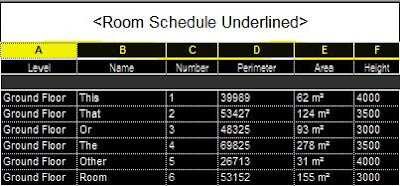
Select all columns
  •  Click on the Borders icon on the ribbon
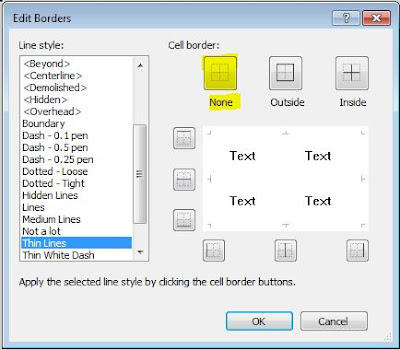
  • Click on the 'None' icon
None borders on all cells
  •  Select the Title cell and set its cell borders to None
  • Select just the header cells
Select all the header text cells
  • Click on the Borders icon on the ribbon
  •  Select the linestyle you want the underline to be
  • Click on the border box to the lower left with cells underlined
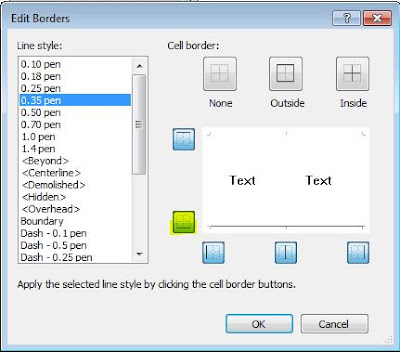
Underline border
  • Make sure that 'Blank row before data' is ticked otherwise the Header cell underline borders will not show - this is the useful tip I discovered in my crazy workaround that also applies to this method
Grid in headers/footers/spacers
  • Also untick the 'Grid in headers/footers/spacers' checkbox otherwise you'll get vertical gridlines in the blank row (as above)
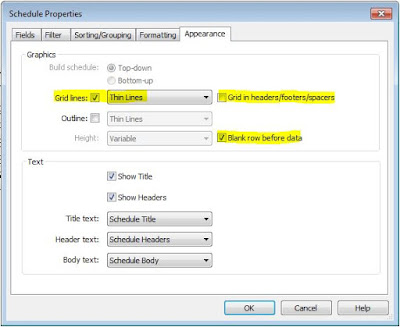
Appearance formatting
  • Select each column and change its horizontal alignment as you require
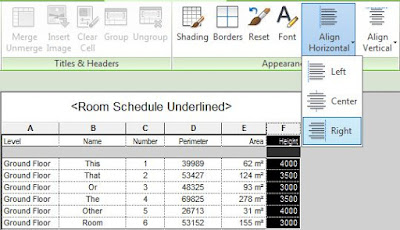
Align columns
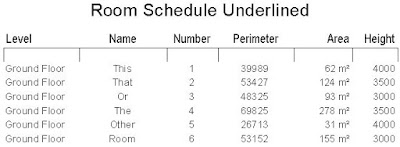
  • Finally you should get the desired result
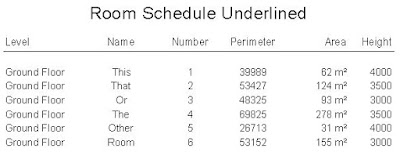
Underlined headers
  • If you want to have some fun you can shade alternate columns.  I don't believe there is a way to shade alternate rows, which is something people do in Excel occasionally.
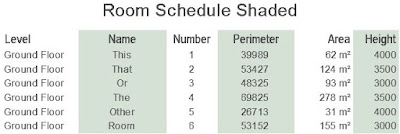
Alternate columns shaded

The moral of this tale is that we now have two different ways of controlling the gridlines on Revit schedules - they do not work well together.  Basically you can opt not use the old controls unless you want very simple formatting that happens to match the old options (All gridlines or just an outline box).  If you want to use the new border tools then you need to make sure the old gridline checkboxes are set to the default settings (as shown above).