BILT Speaker

BILT Speaker
RevitCat - Revit Consultant

Tuesday, 15 June 2021

Family Types Dialog Column Widths in Revit

Does anyone find trying to control the column width in the Family Types dialog box annoying?

The "Lock" column in particular, has been driving me mad for the last 16 years!

About 7 or 8 years ago (?), Autodesk made a partial improvement to that dialog box: 

  • Revit remembers the size of the dialog box when you open or close the dialog - previous to that it always reset to a small default size & layout.  
  • However, it still behaves in an unpredictable way, which is intensely irritating.

I just discovered a trick that helps to get around the problem - so I spent a while analysing exactly what is going on:

Family Types Dialog Box Size Behaviour

  • When you close the Family Types dialog, and subsequently reopen it, Revit remembers the overall size and location of the dialog box.
 
  • This also happens between sessions:  When you close Revit, the next time you start Revit, it remembers the size and location of the dialog box.


Family Types Dialog Column Widths Behaviour

If you adjust the column widths in the dialog box:

  • When you close the Family Types dialog, and subsequently reopen it, Revit remembers the widths of the columns in the dialog box (even if you are editing a different family).
  • Not so between sessions:  When you close Revit, the next time you start Revit, it RESETS the widths of the columns in the dialog box to defaults below (albeit within saved overall width).

Default Column Widths:

    • Parameter = 26%
    • Value = 22%
    • Formula = 40%
    • Lock = 12%

Adjusting Column Widths

If you adjust the column widths, it follows strange and annoying rules:

  • Adjust between Parameter/Value:  It changes Parameter and Lock Column widths
    • This is not helpful as the lock column is wasted space!

  • Adjust between Value/Formula:  It changes Value and Lock Column widths
    • Even less helpful as the Lock column gets enormous

  • Adjust between Formula/Lock:  It changes Formula and Lock Column widths

When adjusting Formula/Lock columns, be careful:

  • If the right-hand "Lock" column vertical line disappears, it means the Lock column no longer fits in the overall width - this will cause much irritation (see below)
  • This makes a horizontal scroll bar appear at the base of the dialog box - yuk!
  • If you subsequently put the cursor anywhere in the "Value" column, as soon as you type a value and press enter, your dialog box may do a "crazy leprechaun dance"*
    • The focus moves into the Formula Column
    • In its infinite wisdom (/stupidity), Revit wants to display the column to the right in full - so it moves to show the whole of the Lock Column
    • You will probably no longer be able to see the Parameter name and/or Value

[*NB. this is what the first iteration of the ribbon menus in Revit 2010 was referred to as doing]

NB. This does not always happen - I think it depends on the overall dialog box width and the Lock Column width


Clever Trick

I only discovered this a couple of days ago:

  • Adjust the Formula/Lock column widths as close as you can to desired

  • Select the right-hand vertical line of the Lock column, drag it to the left until the cursor aligns with check-box
    • Nothing appears to happen
    • However, in its mind, Revit is actually making the column width smaller (it just doesn't show the change)

  • Adjust the Formula/Lock column widths again - to the right
    • it lets you get the Lock column width much smaller (without losing the right-hand line)
  • You can make the Lock column tiny - check-boxes will shrink

Once you have made the Lock column very small - it remains proportionally small when you increase the dialog box size - which is really useful.

Workaround to Avoid the Problem

If you always follow these rules, you are less likely to have a problem:

1.  Adjust your dialog box size to exactly what you will need for the entire Revit session - so if you are working with formulas a lot, then allow for a large width

2.  Adjust the column widths in this order:

  • Parameter/Value  <

  • Value/Formula  <
  • Formula/Lock (keep the right-hand line visible) - move to the right  >
  • Right-hand side of Lock column - move it to the left  <
  • Formula/Lock again - move to the right  >


3.  Make sure you never have the horizontal scroll bar visible 

  • If you ever adjust the Parameter or Value column widths, check the right-hand side of the lock column title - make sure it is visible (and no scroll bar).


Conclusion

If anyone tells me that they have known about this for years, I'd like to know why they never informed me before!


If you would like Autodesk to fix this problem, please go to Revit Ideas and vote for the wishlist item that Dave Plumb recently posted.


Monday, 17 May 2021

Revit Family Error Automatically Resolved

Some of you may not be aware but Autodesk sneaked in a new "Feature/Enhancement" in about version 2018 (I think?) - I do not remember any discussion or announcement about this in the testing/release process:

Warning:  "Family Error Automatically Resolved"

When you try to place or modify a component using parameter values that break the family (eg. cause impossible geometry), Revit will now try to "Fix" the family.

In reality, what is most likely going to happen is that you (the BIM or Content Manager) will be in a "Fix" or "Fixed Up" . . . . .

So, what is going on here?  


 When Revit tries to "Fix" the family, it seems that :

  • Revit makes the requested change to the values
  • Gives a warning to the user
    • As we know, most users ignore the warning and keep going
    • User clicks on OK or presses Enter

  • Revit omits the elements that it cannot create
    • Nested components are particularly prone to this
  • This results in a component that is missing some (sub)elements
 
  • The end user may not know what has happened
    • They may not knotice that something is mssing
    • They may not care!
  • If the user makes further changes to the values that still break the family, Revit gives another warning - this one requires no user intervention.

  • If the user changes the values to something that no longer breaks the family, it appears to reinstate the elements that it could not create.  
    • When I first encountered this, I was sure that once it happened, Revit would never reinstate the missing elements - but on re-testing this it appears to work ok.


Warning

  • It seems that when Revit "Fixes" a family for you, it does NOT retain a warning in the list
  • I think that is a serious failing with this feature, as the BIM Manager has no easy way to find or track the problem

Old Revit Versions

Prior to this "enhancement", Revit would just give a message saying that it could not create the family:


This meant that the user had to either choose values that did not break the family, or else get the Content Creator to fix the family so it did not happen.


Opinions

What do you think of this "Enhancement"?

  • As a BIM, Model or Content Manager I don't think I like it much because it means I often don't get told about the error - so it goes uncorrected.
    • It is not easy to find later on
  • As a Revit User, you might think it is great as you can get on with my work and not be interrupted by having to seek help from the Content Creator
    • It may or may not come back to bite you - chances are that it will become someone else's problem.  
    • If it goes unnoticed for a while the ramifications of the problem could become more significant.


Saturday, 17 April 2021

Cut with Voids When Loaded - 'Cuts Geometry' Postscript

Following my earlier blog post on Cut with Void When Loaded in Revit, I have discovered another subtle exception to the rule:

It does not work properly with the new Revit 2021 feature "Void Cuts in Family Geometry" that allows you to turn the 'cutting capability' voids on/off in a family.  NB. This is sometimes referred to as turning off Void visibility, which is misleading.

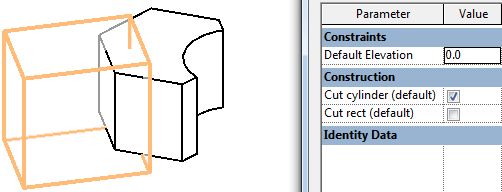
Void in Family Editor

Here is a workflow that demonstrates the confusing behaviour:

  • In the family editor, create a new Generic Model family
  • Tick the 'Cuts with Void When loaded' family property
  • Create a solid with two more intersecting solids
  • Change the two outside solids to voids 
  • The voids will not cut the solid - this is a deliberate technique to carefully control what cuts what
  • Use the 'Cut' command to cut one of the voids from the solid (only one)
  • Select the visible void and link its 'Cut Geometry' property to a parameter - say "Cut Rect"
  • Select the invisible void (that is cutting the solid)
  • link its 'Cut Geometry' property to another parameter - say "Cut Cylinder"
  • In theory, this should allow you to turn off 'cutting capability' of each void independently, once in the project - and hence whether they cut or not.

Test this in the Family Editor

  • With both voids 'cuttable', the cylinder cuts but the rectangular void does not (as expected) - this is because the rectangular void was never told to cut the solid, so it has no effect in the family


  • Turn off the 'cutting capability' of the cylinder - it no longer cuts the solid;  it actually becomes visible, which may seem contradictory - but that is typical Revit behaviour (voids not cutting anything show orange;  voids already cutting a solid disappear)

Switch the cutting properties around so the cylinder can cut but the rectangular cannot - visually it looks the same as having both properties ticked.


 Voids in the Project

From my earlier blog post on Cut with Void When Loaded in Revit, we know that in order for it to work in a project, the cutting void must be set to not actually cut anything in the family - as the rectangular void is set up.
 
  • Load the family into a project

  • Place the family onto an element that it intersect with
  • Both 'Cut Geometry' checkboxes ticked

  • Untick both checkboxes, so the cylinder void is no longer cutting the family solid (rectangular void does not cut it regardless)
  • Both voids are ghosted when the family is selected, or in pre-selection

  • Use the project 'Cut geometry' command with the host element and family
  • Both voids will cut the host element (neither void is cutting the family solid)


  • Tick the 'Cut Rect' checkbox -
    • The cylinder is not cutting the family solid, so it cuts the host element in the project (this may not be what you want, but it cannot be avoided!)
    • the rectangular void is not cutting the family void, so it cuts the host


  • Tick both boxes - only the rectangular void cuts the host (as it is not cutting the family solid)
    • The cylinder now cuts the family solid but not the host (and is no longer visibly ghosted)

Conclusion

  • If the void cuts a solid in the family, it cannot cut an element in the project using the 'Cuts with Void When loaded' family property
  • If the void cuts a solid in the family,the new (in v2021) 'Cut Geometry' property has the potential to work in a project
  • If the void does not cut a solid in the family, it can cut an element in the project using the 'Cuts with Void When loaded' family property - but only when you use the 'Cut' command in the project
  • If the void does not cut a solid in the family,the new (in v2021) 'Cut Geometry' property has absolutely no effect in the project

This probably makes sense if you think really hard about decisions the programmers had to make about what is possible and how it might work.

However, it is mighty confusing for the end user.

To make matters worse, we now have two entirely different 'Cut Geometry' functions in Revit:

  • 'Cut Geometry' property in the family - a checkbox
  • 'Cut Geometry' command:
    • in the family- where you actively select which elements cut each other
    • in the project - where you actively select which family cuts which element but the results depend on all kinds of things in the family (as described above).

All clear now?  Or still confused?


Thursday, 1 April 2021

Rustic Railings in Revit

There has been a lot of talk over the years about just how hard the Revit stair and railing tools are to work with.

I decided to do an experiment - and see how long it took to build an actual stair and railing vs building the same thing in Revit.

I chose to build a rustic-style stair as it was outdoors in a wild garden setting.

Rustic Stair and Railing Hackathon

I thought I had better give Revit a fighting chance by not zeroing in on one of Revit's biggest railing weaknesses:  "Baluster Spacing"

  • So I decided not to include any balusters at all.  

Technical Details

  • The stairs were made from hand-hewn sandstone, with irregular shapes and slightly differing tread widths;  riser heights were near enough the same for each step.  Stones were carved to exact size and placed without mortar - exactly how the ancient Egyptians, Mayans, Aztecs et al worked their stone structures.
  • Railing was made from locally sourced Melaleuca timber - hand-cut on site:  Two posts and one 'Top Rail', all sourced from the same tree.  The top post and handrail were left to cure in the open for several weeks;  the lower post was cut and installed the next day.
  • The handrail was fixed to the posts with tuppenny nails.
  • Real stairs and railings were built without any drawings - I couldn't wait for those to be finished.
  • The virtual stairs/railings were created using the "New" stair tools (post Revit 2013) & the "Old" railing tools (circa v2 with minor improvements in v2013)

Finished Product

The finished stair and railing

Unfortunately I don't have an image from Revit, because it was created in a later version that I could not open with my current version of Revit.

The Stats

  • The real stair took approximately 18 months, done a few hours at a time at weekends.
  • The real handrail was build about a year later - it took approximately 2 months, again done at weekends.
  • The virtual stair took 5.5 years, including waiting time between Revit versions - hoping that problems encountered had been fixed in the next version.
  • The virtual railing is still unfinished, awaiting software improvements.

Problems Encountered

  • The lower railing post was obviously installed too quickly after cutting, as it started to sprout a few weeks later (inadequate curing time).
  • I really struggled with applying the virtual stair hand-cut stone materials to the treads, especially in 2D plans.
  • Without any balusters on the virtual railing, the 'Building Inspector' would not give approval to the railing.

The Winner

Hands down winner was the real stair/railing:

  • It was so much easier and quicker to build the real thing than attempting a virtual model.
  • It was very therapeutic working manually on the stone and timber at weekends after a hard week of Reviteering.
  • It was ever so slightly less therapeutic grappling with the virtual tools for stairs and railings in Revit.


1st April 2021 (Australia).


Sunday, 14 March 2021

Shared Parameters in Revit View Filters

Here is another Revit Gotcha for young and old: 

Family Editor Shared Parameters

If you add a new Shared Parameter in the family editor, you might expect that parameter to be available in a project in all situations.  You would be wrong!


Shared Parameters created in the family editor, and then loaded into a project have two entirely different (inconsistent) behaviours:

  • In Schedules, the shared parameters will automatically be available to add as fields
  • In View Filters, the family shared parameters will not be available to add as fields

This is quite confusing and inconsistent.  It can also catch you out, however experienced with Revit you might be - as I recently discovered when demonstrating how to create View Filters to a client

Schedules

If you create a new schedule  for the category of the recently loaded family, the Shared Parameter is automatically available in the list of available fields - as you might expect:  it is one of their mystical powers.

View Filters

Try the same trick with View Filters and you will probably get a nasty surprise


 Workaround

To make the shared parameters available for use in View Filters, you have to add them (again) as Project Parameters.


View Filter

If you go back to the View Filter definition, you will see that the Shared Parameter is now available as a field to be added.


As a BIM Manager, I would once have known about this Revit inconsistency - but I just plain forgot!  There is no way we can remember all of the inconsistencies.  And why should we have to?

Fortunately, Autodesk are slowly addressing some of these irritations - but it is such a laborious process.