BILT Speaker

BILT Speaker
RevitCat - Revit Consultant
Showing posts with label circle. Show all posts

Tuesday, 25 January 2022

They Broke Their Own Cloud Space in Revit 2022

Way back in Revit 2015, Autodesk gave us a really nice enhancement:

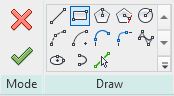
  • Ability to use all the sketch line drawing tools to quickly create Revision Clouds.


Prior to v2015 we had to laboriously draw each arc of the cloud as a segment (2 clicks:  for start and end of the arc) - the longer the segment, the larger the arc radius.  For those who never experienced it, that was a really tedious workflow.

I remember from Beta testing that we requested for the Rectangle to be the default drawing tool (it was not initially - I think the original default was either the line or circle.  Luckily we asked for that request before the code was finished so it was quickly implemented.

One of the other little features they added was the ability to reverse the direction of the cloud using the space bar - as it was being drawn:


This allowed the user to create a reverse or inside-out cloud - it may look ugly but it has a very specific use:  To indicate "Hold" on part of the drawing or model.
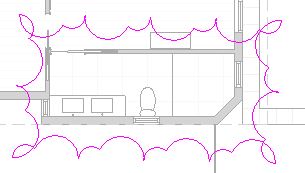
They Broke it in 2022

I am not sure if it happened in v2022 or 2022.1, but the spacebar trick no longer works for placing rectangular reverse clouds.   Aaaargh.

It still works for circles and both polygon types.

That means you could use a 4 sided polygon to get a square cloud - but the chances of needing that shape are slim.  The only other option is to use the line tool and create a rectangle by drawing the 4 sides in an anti-clockwise direction.

The good news is that it is still waaaay better than the old method pre-v2015.

Let's hope that Autodesk fix this in the next update?


Thanks to Frank Crisp of Koichi Takada Architects in Sydney for pointing this out to me.


Wednesday, 1 February 2017

Gare do Oriente - Nested Revit Repeaters - part 1

In 2013 I presented a paper titled "Fractal Fun with Revit Repeaters and Adaptive Components" at three RTC events in Auckland, Vancouver and at the inaugural European Revit conference in Delft, in the Netherlands.  Part of the presentation involved a live demonstration of how to construct a parametric Revit model of the roof of the Gare do Oriente railway station in Lisbon, designed by Santiago Calatrava.

Gare do Oriente by Santiago Calatrava

Since then I have had a number of people asking me how it was done - it was of course described in step-by-step detail in the RTC handouts.  Those are not so easily accessible now, so I am posting the content here, in stages.  Part 1 involves creating a rig for one of the structural supports of the roof.


I will not show a step-by-step guide here as the process is described in a video tutorial:
here is a youtube link


As a reminder, below is a list of the steps required in the process:

  • Start a new Adaptive Component
  • Place a point at the origin (X,Y,Z = 0)
  • Make it adaptive
  • Make its 'Show reference planes' property to 'Always' visible
  • Set the workplane as the horizontal reference plane of the adaptive point
  • Place another point on top of the adaptive point
  • Move it up in the Z direction
  • Associate its 'Offset' property to a parameter 'Height' (NB. it will only have an Offset property if it is correctly hosted on the horizontal reference plane of the adaptive point)
  • Draw a reference line from the top point down to the adaptive point, making sure 3D snapping is on (Options toolbar)
  • Place two more points, both hosted on the reference line
  • Make the upper line-hosted point always show reference planes
  • Change its Measurement Type to 'Chord Length' or 'Segment Length' (NB. because the host is a straight line, in this case Segment length is the same as chord length, which just means direct distance)
Hosted point Measurement Type
  • Associate its 'Chord length' to a parameter called 'Perimeter Drop'
  • Change the Measurement Type of the lower hosted point to 'Chord Length' or 'Segment Length'
  • Associate its 'Chord length' property to a parameter called 'Valley Drop'
  • Flex the parameters to test the rig thus far;  move the adaptive point to check everything else is hosted to it
Circles to host geometry
  • Set the workplane as the horizontal reference plane of the top point
  • Place a reference circle centred on the point
  • Make its temporary radius dimension into an actual dimension
  • Associate the radius dimension to a parameter called 'Radius outside'
  • Set the workplane as the reference plane of the upper hosted point
  • Place a reference circle centred on the point
  • Make its temporary radius dimension into an actual dimension
  • Associate the radius dimension to a parameter called 'Radius inside'
  • Create a formula for 'Radius outside' = Radius inside * 1.4142
Divide Path
  • Select the top circle
  • Click on the 'Divide Path' icon
  • Set the number of points to 8
  • Select the lower circle
  • Click on the 'Divide Path' icon
  • Set the number of points to 8
The basic rig is now complete, ready for adaptive components and repeaters to be hosted on it.  These will be covered in following tutorials.

Step 5  Assembling the Array of Structural Columns

Sunday, 3 November 2013

Circular repeater geometry in Revit

In previous posts I have described how easy it is in Revit to use a circle as a rig to host regular geometric shapes like squares and hexagons.  It occurred to me the other day that circles would also be ideal hosts for parametric stars;  put that together with Repeaters and you get some interesting possibilities . . .

Here is how to create a parametric star:
  • Create a new adaptive component;  
  • Place a point at the origin; make its reference planes visible
  • Set the horizontal ref plane as the work plane
  • Place a reference line circle onto the point
  • Make its radius dimension into a parameter
  • Select the circle
  • Divide Path
  •  It will create a divided path on top of the circle with 6 nodes
  • Create another Adaptive component
  • Place two points, and make them adaptive
  • Place a line between the points, remembering to enable "3D Snapping" first
  • Save the second family (eg. as "AC 2pt Line")
  • Load it into the first family
  • Place one of the components onto two non-adjacent nodes
 
  • Select the two-point component and click on the Repeat command
  • You should end up with a triangle
  • NB.  if you placed the two-point adaptive line component onto adjacent nodes you'd get a hexagon
  • Actually, a triangle is only half of what we want, but we need to backtrack to get the correct result - so, UNDO the repeat command
  • Place a second two-point adaptive on alternating non-adjacent nodes
  •  Select both lines and click on Repeat
  •   
  •  You should end up with a six pointed star, which is now a "Repeater"
  • Select the divided path, and change the number of nodes to 5, giving you a five pointed star
  •  Change it to 4, which gives a cross (not so useful)
  •  Change it to 3 for a triangle
  •  Change it back up to 7
  •  And then to 8 - this gives an eight pointed star that could be useful in tiling patterns when repeated itself on a divided surface
  •  As the number of nodes increase, the shape becomes closer to a circle
  • Now all you need to do is turn the number of nodes into a parameter to get yourself a one-point adaptive parametric star component
  • Oh, one more thing - you need to make the nodes of the divided path not visible otherwise they will show up when this component is placed in a project or another family


How useful is this going to be?  We'll investigate that in a future post . . .
Here is one possible use - geometric patterns