BILT Speaker

BILT Speaker
RevitCat - Revit Consultant
Showing posts with label other. Show all posts

Tuesday, 16 June 2020

Callout Reference Label in Revit


Following on from my previous post on Real Callouts vs Reference Other View Callouts, there is one issue that I did not address previously:

Managing the Callout Reference Label in Revit is a total pain as well as being counter-intuitive:
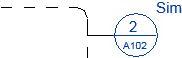

Revit likes to add the reference label to your callouts - typically it reads "Sim" for Similar (in the Australian Revit template - not sure about other countries).
  • Revit Automatically shows the label when you use 'Reference Other View' but not on Real Callouts
Unfortunately it is not possible to control the visibility (or wording) of this label on an instance basis:
  • The reference label is a Type property of the view
  • What this means is that if you use my proposed method of making all Callouts by 'Reference Other View', you will always get the "Sim" label - even if you only have one instance of the callout.
  • You can simply remove the reference from the type property of the view - but then you would never get the reference label at all, in any situation.
  • The problem here is that the 'Reference Label' property belongs to the original view that you are referring to - if you change the property it affects all views of that type (not just the selected callout).
    • in my opinion it should belong to the actual callout, so that you could decide whether you want it or not on particular callouts.
  • In that scenario it could still be a type property - of the callout (not the view).
I actually don't like to use this property at all - I can't see the point of it in a documentation set:
  • If a referenced detail is "Similar" that means it is not actually the same - it is a slightly different detail, so it really ought to have its own view and reference.
  • If you have multiple instances of a callout, all pointing to exactly the same detail - then the are "The Same" not "similar", in which case the reference is redundant.
  • However, there are many documentation managers who do like to use this "Sim" convention on their drawing sets - so we have to find a workaround for them.
If you use 'Reference Other View' for all callouts, then you have to make the Reference Label property blank for all view types.

Workarounds?

My workaround is to just not use the "Sim" notation at all - but for those that are forced to use it . . . .

I have tried to find a way to add a symbol or text to the callout, but that is fraught with problems too:
  • If you add a line to the callout symbol it shifts the whole callout bubble
  • If you disable the system "Sim" reference, and add your own text label, it is not possible to link to the callout in any way:
    • Cannot snap to the callout symbol
    • Cannot snap to the callout lines
    • Cannot Group the callout and symbol (or text, or detail component) - it won't include the callout as it is a view.

Does anyone have a good idea on this one?

Thursday, 4 June 2020

Which Kind of Callout to Use in Revit

Previously I have written about some of the limitations and inconsistencies with Revit Callouts:
There are some strange and frustrating restrictions, which mean you need to carefully plan how to manage Callouts.

Here I am going to describe the different ways to make Callouts in Revit, and propose a method of working that is different to the way Revit was designed, and probably different to how you use them.

Which Kind of Callout to Use?

1. Real Callout


The standard ‘Callout’ command places a rectangle defining the callout view extents. This will create a new view, and place the view reference rectangle on the active view. For reasons listed below, this method is not preferred.

  • You cannot change the reference.
  • You cannot move the callout to a different parent view.
  • You cannot change the callout view family between Plan/Detail (Plans only).
  • The callout rectangle can be stretched or rotated in the parent view – this will make the same change of extents or rotation to the callout view itself, which is not always desirable.
  • You cannot have the callout extents slightly different on the parent view (to make callouts readable) - they have to match the view cropping exactly.  Refer to Callout Crop-Boundary Mismatch.
  • If you copy and paste a Callout it creates an entirely new view with a different reference.
For more information see rules for Real Callouts

2. Reference Other View


Reference Other View Callouts can be created by:
  • Create a view to be referenced by the callout – eg. duplicate another view and crop it
  • Make sure the view is cropped (unless it is a drafting view).
  • On the view to place the callout, select the ‘Callout’ command, then select ‘Reference Other View’, and select a relevant view name from the drop-down menu
This method has many advantages:
  • Callouts can be moved to another view
  • Callout references can be changed to refer to different view
  • References will update if the view/sheet number is changed
  • Callouts can be copied to another parent view
It also has a few disadvantages:
  • It is possible for the user to select the wrong view in the list - there is no automatic check for this.
  • If you want to have "Sim" showing on a callout for similar details on multiple callouts, that is a Type property of the view being referred to, not a property of the callout symbol. 
    • That means it is all or nothing - ie. all instances of the callout must have "Sim" or not. 
    • It also changes the view type so it may move in your project browser, depending on your browser organistion.
  • You have to manually create each callout view (by Duplicate or Duplicate Dependent); then crop that view - this is a small price to pay for the benefits.
    • You could probably automate this using Dynamo.

3. Intersecting Views

Section callout symbols can be created automatically by Revit in section views – this occurs when one section has its extents completely within the larger section (both crop boundaries and clipping extents).
I would not recommend trying to use this method:
  • It is very confusing for users - it is better to stick with one Callout method for consistency.
  • Such callout sections may appear/disappear as view extents change

4. Fake Callouts 

Last and very much least, is a method that you should never, never use - but I've seen it often.
Fake (or dummy) view callout references can be made out of detail components or detail lines and text. This is very bad practice:
  • These may look like genuine Callouts, so people may not check the references. 
  • References will not update if view/sheets are changed.
  • This is totally against everything that Revit is trying to do!

Workflow Opinions

The following are my recommendations for working with Callouts in Revit.  Please note that these are opinions only - it is up to you to look at all the reasons I have given, and make up your own mind about this.  I accept no blame if it does not work for you.

One: All Callouts by 'Reference Other View'

Use method 2 (Reference Other View) for every single callout in your project.

If you never use methods 1 (Real Callouts), 3 (Intersecting Views), 4 (Fake Callouts), you will ensure consistency and will avoid most of the problems related to Callouts.

Two: Do Not Use Detail Views

Avoid using the Revit view family of 'Detail Views' - these have so many limitations and quirks, it is just not worth it.  Always use Plan views or Section views.  Refer to Detail Plan Callout Views

NB. If you follow the first recommendation above, this will not be an issue because it is only possible to create new detail views by Real Callouts.

Three: No Fakes

Never, never, never, never, never, never, never, never, never, never use method  4 (Fake/dummy Callouts).  It is much quicker and safer to use 'Reference Other View' callouts.
Anyone who does this in Revit should not be using Revit at all !

Reference Label

There is one problem with using only 'Reference Other View' - refer to 'Reference Label'

Feedback

I would be very interested to hear whether anyone has different (or the same) opinions about using Callouts - feel free to comment.

Thursday, 28 May 2020

Revit Callout Crop Boundary Mismatch


When placing callouts in Revit, it is a common situation that you might want the crop boundary on the callout view to be different to the view reference on the parent view.  Here is a typical example:
  • When a callout (eg. for a bathroom) is created, you typically leave a large zone around the walls so that the callout is clearly visible on the plan

  • When you go to the callout view, it has greater extents than required
  • If you adjust the crop in the view to be tight around the walls, to display as you'd typically like it on the drawing sheet . . .
  • it also affects the parent view callout reference - so the callout boundary is very hard to see on the drawing.

This is how Revit callouts were designed to work - but it does not allow you the flexibility to make your drawings look neat and readable.


The workaround solution that I would normally recommend is to create the bathroom layout views without usng the Callout tool (duplicate views, crop manually); crop them as desired; then use Callouts with 'Reference Other View'.
  • This allows you to have slightly different callout and view crop boundaries
  • Be warned that it does mean that the callouts will not automatically update if the view crop boundary is changed.

 More detail on this technique in a following blog post . . .