BILT Speaker

BILT Speaker
RevitCat - Revit Consultant
Showing posts with label modify stair. Show all posts

Sunday, 16 February 2014

Revit Multistorey Stairs - Method 2


[Edit: Revit 2018 has a new method for creating multistorey stairs, so the issues described here will not be relevant once you upgrade to v2018;  if you are using v2017 or earlier, read on]

Following on from the last couple of posts, here is an alternative method for creating multistorey stairs in Revit - typically where you need the runs and landings to be different to each other on each building level.  However, this method could also be used even when upper levels of the stair are the same as lower levels
Staircase up the Rock of Guatape, Columbia
Method 1 uses the "Multistory Top Level" setting to create virtual stairs above the components that you have modelled;  it also creates virtual railings on the upper levels of multistorey stairs - these have all kinds of limitations.  Method 2 does not use the Multistory setting, but relies on you modelling every component of the stair - since Revit 2103 lets you place run above run and landing above landing, you can do this.  It has its own set of limitations as we will see below, starting with a simple example:

Three flight One-Storey Stair

This example assumes an overall stair height greater than a typical floor to floor (4 metres in this case); or else you may need the stair to end up on the opposite directions at top and bottom.
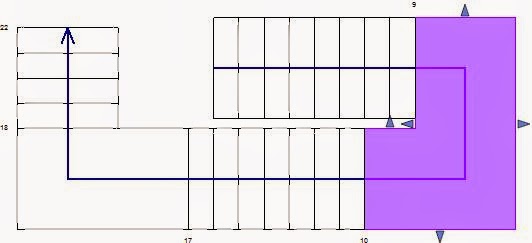
  • Start with placing two runs, and it will create the first landing.  Note that Revit numbers the first and last riser on each run
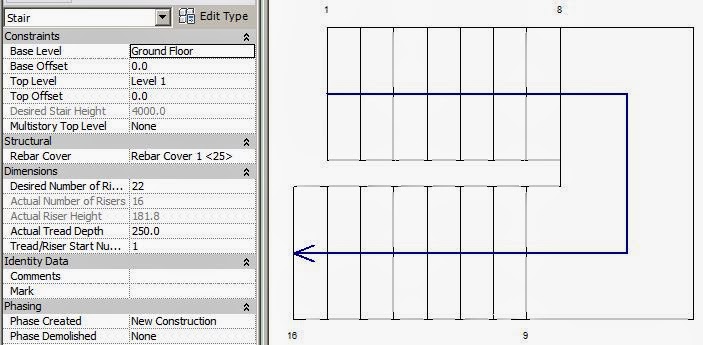
  • Then place another run starting on top of the lowest run (this was not possible prior to Revit v2013);  it starts getting confusing already - it tells you how many risers are remaining to finish but its hard to distinguish visually where you are at
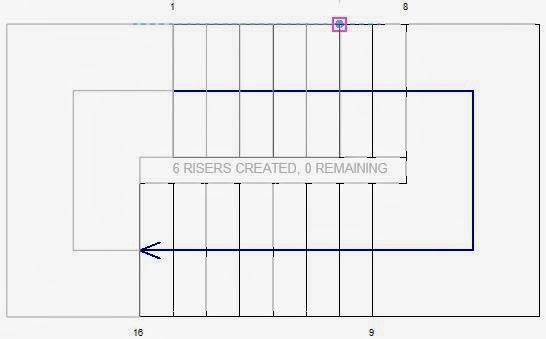
  • The top run will display riser numbers when selected, but only after it is placed - this helps you distinguish which run you have selected
  • It is much easier to see what is happening in section, elevation or 3D, although riser numbers are not displayed; you do get the shape handles in section/elevation
  • When you finish the stair, you will get the inevitable warning message as Revit creates the railings (the stair itself is fine)
  • Revit will go ahead and create the railings, with only the usual glitches as it tries vainly to go around the inside corners
 
  • The reason for the warning is that the automatically created railings contain sketch lines that overlap each other.  Revit would not normally allow this to happen - certainly if you tried to sketch it that way yourself it would not let you.
This warning message is a bugbear of the new Revit stair by component tools.  The software developers apparently knew that this would happen because Revit allows the stair and its railings to break the normal rules.  As users, we have assumed that the new stair tool was part one of an update process and that new railing tools would follow, and resolve the problem - but we have not seen any new railing tools yet.  We live in hope!

So, Revit will create these "railings with warnings" but woe betide if you need to modify the railing sketch lines - it is almost impossible to untangle the overlapping lines.

If you do need to modify the railing, refer to the next post  Multistorey Railings - Story 2.


Multi-Level Multistorey Stairs

Once you start going past three flights and over multiple building storeys it gets more interesting.  There are two approaches to defining the overall stair height and riser height - the options are somewhat akin in principle to the Array command in Revit:
I will refer to them as "Define Second Storey" and "Define Last Storey" techniques, so the comparison with the Array command makes sense.  In the examples shown here, I will stick to two runs per storey, to keep it simpler.  What varies between the two techniques is the setting for 'Top Level', and as a result the overall desired stair height and desired number of risers.

If all your building storeys are the same height, it should be fairly straightforward, because riser heights would be identical for the entire stair.  However, if some storey heights vary, you may run into trouble, as seen below.  Both techniques will not allow you to vary riser heights for different storeys, so that aligning landings to storey levels may be a problem.

Define Second Storey Technique
For the Top Level of the stair, you can define the upper level of the first building storey that the stair spans, even though you intend for the stair to keep going above that level.  Revit will calculate the riser height and number of risers for that building storey only.
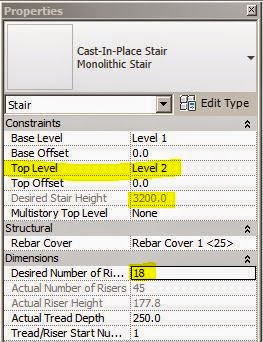
  • After placing the first couple of stair runs, you will reach the desired number of risers;  Revit lets you keep adding more runs - when you start placing more overlapping runs, the automatic riser numbers in plan will display the Desired Number of Risers + the additional number, which can be a little confusing
  •  Just for the record, the size of these automatic riser numbers is controlled by the view scale - if you want to be able to read them, just bump up the scale temporarily
  • The riser height will be constant for every run - this means that on the runs above the defined Top Level, you may not be able to align the stair exactly with levels where upper storey heights vary
  • Once the stair is complete, you will be able to label the step numbers using the "Stair Tread Number" annotation tool.  The numbers will display the correct riser number within the whole stair rather than the "Desired +" that you get with the automatic riser numbers.  This is a different result to method 1 (virtual upper level runs created using the Multistory Top Level setting) where the upper levels cannot be numbered at all

Define Last Storey Technique
For the Top Level of the stair, you could define the highest level of the stair.  Revit will calculate the riser height and number of risers for the whole stair
  • The riser height will again be constant for every run - this means that intermediate landings may not be able to align exactly with middle levels where any storey heights vary
  •  The automatic riser numbers in plan will be the actual number within the whole stair

Once you complete the stair, you will get the inevitable warning message
You can ignore this message if you never intend to edit the railing.  If you do want to edit it then refer to the next post about Multistorey Railings - Story 2

Tuesday, 21 January 2014

Revit Stair Landings - Part 2: Modification

In the previous post I talked about creating stair landings in Revit.  Now its time to look at modifying landings, which is very different to the old sketch method (pre-v2013).

Stair landing components can be modified individually but they interact with run components in unexpected ways, so you need to learn the rules as it is not always intuitive. If stair landings have been created by the new sketch method or have been “converted”, then the interaction with runs is more limited.

To modify a landing component you generally need to be in edit stair mode. The exception to this is changing landing properties, which can be accessed by tab-selecting the landing without editing the stair.  There are various methods to modify a landing, each with their own benefits.  There are also some subtle differences between landings in v2013 and v2014 (and later), to be described further on:

 Align Tool

The Align tool will behave differently depending on what you select to align and what the relationship is between linked components.

  • if you align a landing edge, it will most likely move the landing, which in turn will move the associated runs, in effect moving the whole stair
 
  • If you align a run edge, it will move that run. If there is a linked landing, it will also move the edge of the landing, changing its size; it will not move the next run
 

  • NB. Align does not work on the centreline or edges of a curved stair

Move Tool

If you use the Move Tool on a landing (in plan), it will also move the connected run components; on a simple stair with one landing connected to two runs it will effectively move the whole stair;  on a more complex stair the end result depends on the other connections (see later)

Simple Stair


If you want to move just the landing but keep first/last riser locations, you have to use some reverse logic by moving the whole stair then adjust the risers back. 
  • You can use the Move command on the landing component, or select the two runs and move those – either way the effect is the same. 
  • You then have to drag the arrow shape handle at top or bottom of the stair to return the risers to their original location, and Revit will automatically add/remove risers from the connected run


Complex Stair (multiple landings)

If the stair has two or more landings, then the intermediate run will be connected to both landings.  The knock on effect of moving one landing would be to move the free run but not the intermediate run (which is attached to the other landing);  the end result is to change the landing shape or size:
In this example the landing is selected and moved to the right and it automatically changes from rectangular to L-shaped.  The free run at the base of the stair moves, but the intermediate run cannot move - so the landing has to change shape to remain attached.
The rule to understand here is that when a landing is moved in plan its height cannot change thus something else has to give (its shape and/or attached run locations).

Move Run to Adjust Landing Shape

Another "not so intuitive" workflow is to use the Move Tool on an attached run component to adjust the landing shape.  In this example the run is moved in order to add a stagger into the landing so that both runs no longer align.

 
Revit v2014 has additional shape handles on the landing, which allow alternative more intuitive workflows to achieve this (see below).

Move Landing in Section to change stair layout

Stair layouts can be changed in section or elevation too.  The landing height can be changed by moving it up or down to resolve headroom issues - it will snap to the nearest multiple of riser heights, so you don't need to calculate the exact amount to move it by in order to maintain equal risers.  Revit will move the run start/end points to suit.


Shape Handles

For general information on stair shape handles refer to my previous blog post on the topic.  However, that does not cover landing shape handles, which are a little more confusing. In addition, the original v2013 landing shape handle behaviour was changed for v2014.

The landing height can be adjusted by using the arrow shape handles on adjacent runs.  The number of risers on one run will be reduced, while the other is increased, thus changing the start and end locations of the stair without moving the landing in plan:

NB. Do not use the filled dot shape handle at the base of the stair, unless you really want to change the height of the start of the stair.

You can use a side arrow shape handle to make a landing width greater than that set by adjacent runs, but it will not let you make it less.
Once a landing is wider, that offset is sometimes maintained if an adjacent run width is changed - but not always.  It seems unpredictable.

Revit v2013

In v2013, landing shape handles are fairly limited in what can be achieved.  On a rectangular half landing (U-shaped stair) there are 4 shape-handles.  
If you want to stagger the runs where they meet the landing, it seems natural to select the landing and try to adjust it using the shape handle where the landing joins the runs. It won’t let you drag the handle towards the runs, only away from them. But this actually gives a different result - it cuts a notch and it moves the outside of the landing and to maintain its  depth (although it may be a desirable outcome in some situations).  To achieve a stagger in the landing we must move one of the stair runs towards the left (described previously).


Landing Width/Depth

Modifying adjacent run widths will affect the aligned landing width.  Landing sides will continue to align with runs unless you over-ride that using the landing side shape handles.
In v2013 it may also affect the depth too, but the rules are tricky:  changing a run width will only affect the landing below the run, not above it.

The rules seem random until you test it systematically as shown below:

Revit v2014 Shape-Handles

In v2014, landing shape handles have been improved, but at the same time the automatic control of landing depth has been broken - this is something you need to watch out for.  Additional shape-handles are available between each run and adjoining landing.  This allows you to put a stagger into a rectangular landing more intuitively by dragging the landing shape handle (rather than relying on moving a run).

 
The shape handle in the stair well works similar to v2013 in allowing you to put a recess cutout into the landing.  However, in v2014 it will not maintain the landing depth - but it does give a warning message that the "depth is less than run width".  This warning is triggered by Revit comparing the landing depth with the smallest actual width of either attached run, not the minimum run width set in the stair type properties (actual width can be made smaller than the minimum required).
Fortunately the landing depth can be corrected with temporary dimensions or the outer shape handle.  NB. the inside shape handle will not snap to any increments or give a temporary dimension, so you need to put in a reference plane to snap to before correcting the landing depth.

Landing Width/Depth

Modifying adjacent run widths in v2014 will only affect the landing width but not the depth.  This may be logical if you make one run wider, but if you make both/all runs wider you would want the landing depth to match - but it won't, so you have to manually alter all landings, meaning it is only too easy to get a landing depth that is smaller than the narrowest run. The outside line of the landing will only change if the outside shape-handle is explicitly moved.

Landing Properties

Landing heights can be changed in the properties dialog box - you need only type in an approximate value and Revit will correct it to the nearest multiple of riser heights.  This will not move the landing in plan, so the end result will be that adjacent runs will alter to accommodate the new landing height.
Landings do not have Width or Depth instance properties, so you can only adjust those dimensions by:
  • Change the adjacent run widths;
  • Move adjacent runs;
  • Use the shape handles; 
  • Temporary landing depth dimension (v2014 only)
  • Convert to sketch (not advisable).

Temporary Dimensions

  • Landings do not have any temporary dimensions when selected in v2013.
  • Landings do have landing depth temporary dimensions when selected in v2014.
  • Spot dimensions can be placed on landings in plan and section/elevation, but they cannot be used to adjust landing heights

Convert to Sketch

Automatic landings can be converted to sketch landings so that you can modify the plan shape to something that is not possible to create using automatic landing features.  Automatic landings can form a wide variety of shapes, but cannot:
  • Have rounded corners
  • Have notches cut out of outside corners (only in stairwell)
Convert to Sketch should be the last resort, and should be avoided where possible.  This is irreversible - the only way to make a landing revert to automatic behaviour is to delete and place a new one, which would remove any attached elements, modifications or annotation.
Once a landing is converted to a sketch:
  • It will never have shape handles;
  • It will never adjust in plan when adjacent runs are moved;  
  • it will cause error messages requiring landings and runs to unjoin if an attached run is forced to move away from the landing;
  • It will allow height adjustments

Tips and Tricks

  • If you want to change the landing width it is better to change the adjacent run widths to control it automatically (unless you don’t want them to align).
  • In Revit v2014 it allows the landing extent/depth to be smaller than the narrowest run width. To fix this you can use the shape handles on its outer edge or the temporary dimension.
  • in v2013, landings do not have handles where it meets a run, so you can’t use shape handles there - to stagger the risers for example; you have to MOVE a whole run to achieve that. 
  • Be careful with the Move command on landings because it will most likely affect adjacent runs, and may end up moving the whole stair.
  • If you have created a top landing, any changes to the adjoining run below it may not be able to flow through to the top landing (as it cannot change in plan) and it may give you a message about "stairs and landing cannot be joined".
  • The quickest way to change a stair layout might be to change a landing height property - this can be done without even editing the stair