This is a new feature in Revit 2017, which has long been on many architectural user's wishlist. OK, lets do some testing and see if we are ready to take it off the wishlist yet?. . . . .
- First I set up a series of walls that are stepped in plan, with a few windows in the walls.
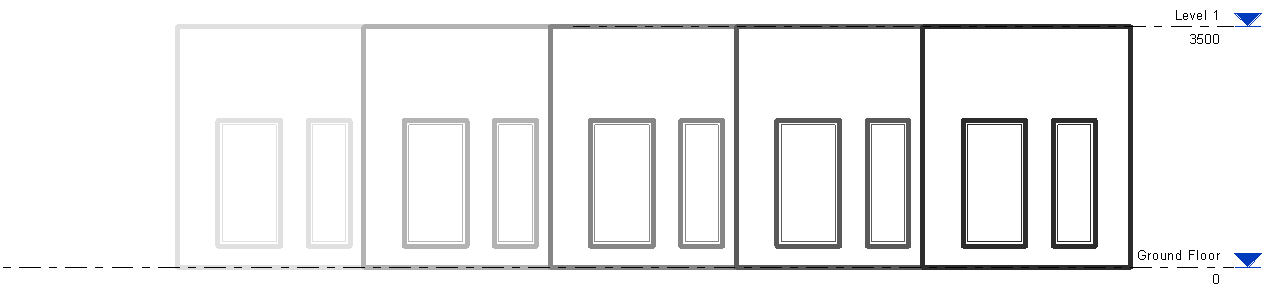
- Then created an elevation view looking at the walls and windows
- In order to examine what is going on with depth cueing, I needed to artificially bump up the line weights of the elevation - in Object Styles:
- Oh, if you are one of those people that likes to read manuals before trying something out, there are some interesting notes in the Autodesk Help files:
Autodesk Help:
Depth cueing...
- applies to model elements, and graphic display effects, such as shadows and sketchy lines.
- does not apply to annotation elements, line weight, linework, background image, or background color.
After applying depth cueing to a view, you can do the following:
- Export the view to an image file.
- Print the view (raster processing only).
- Add the view to a sheet.
Alarm bells
Any alarm bells ringing yet? Does not apply to
Lineweight or
linework; Raster processing only.
So, if you are the sort of person who likes to use lineweights to give your drawings depth and readability, perhaps you'd better stop reading now? Or maybe go and have a little cry?
[Edit]
Or maybe you need to rethink how you expect it to work?
Here's How it Works
First go to 'Graphic Display Options' and you'll see a new item called 'Depth Cueing'
Expand it and you'll see some sliders. By default it will be off, so you need to tick the checkbox.
Unlike the Sketchy Lines feature, you will get an instant result after clicking Apply, without having to adjust the sliders. Notice how the walls furthest away become lighter and lighter - which is the desired effect, you might think. But look closer and you'll see that the lines are
not getting thinner - just lighter. This shows up quite well in the image below because I have bumped up the line weight.
The effect is more subtle if you have thin lines and no wall hatching (closer to a typical elevation)
If you adjust the 'Fade Limit %' (lower) slider, the degree of fade is reduced
 |
| 50% Fade |
If you put it up to 100%, you get no fade at all - effectively turning off Depth Cueing:
 |
| 100% Dark (No Fade) |
The top slider 'Fade Start/End Location' is actually well described in the
Autodesk Help notes - to my astonishment, I found not only an image but a meaningful description that told me how it works, and what it does, rather than the usual one-liner telling me that the feature exists. Gold Star to whoever wrote that help page. So I will not go into any detail on how to use it here.
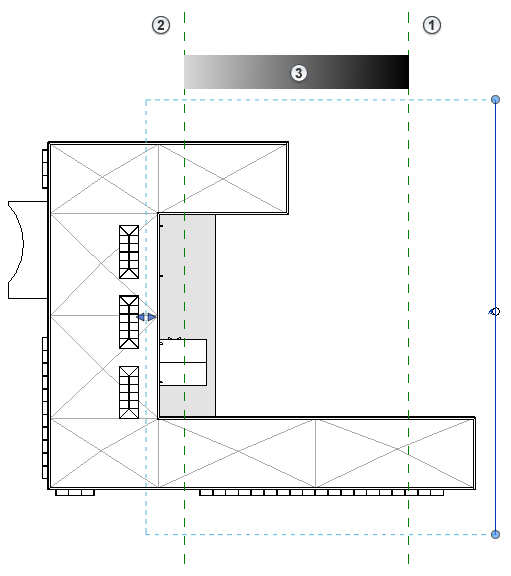 |
| Autodesk Help - graphic explaining Depth Cueing Fade Start/End Location |
One of things it states is:
"
at Fade Limit 0%, elements that are farthest away could be invisible. In most cases,
you want to set a percent greater than 0 to ensure that elements can be
seen and printed, if desired."
If you have the Fade Limit at zero (default setting), and start adjusting the 'End Location' (right-hand side of top slider) - sure enough, things start disappearing.
 |
| End Location 75%, Fade Limit 0% |
Add this to the list of reasons why things are not displayed in Revit! The list is well over 30 possible reasons by now. It begs the question, Why did they make the default Fade Limit 0% instead of something safer like 10%, say?
Graphic Display Effects
The help notes state that Depth Cueing works with graphics display effects like shadows. Yes, it seems to work
I tried enabling the Silhouette setting, and this is where it started getting weird
As I had the wall lines set to a very heavy lineweight, I tried a thinner silhouette, which is the wrong way around from normal - but it showed a couple of glitches:
- Strange dots at the corners of windows - I guess they might be wall edge lines seen end-on where the silhouette has not been applied? A bug, I guess.
- The actual wall edges are showing a thin line (the silhouette) in front
of the greyed out depth cue line, which is still shown at full line
width behind it. The silhouette line is somewhat greyed out but not as
much as the depth cue line.
- But why does Revit consider wall opening edges to be silhouettes anyway? They are not as significant as the actual wall outlines - I would normally want them to remain unaffected by the silhouette feature.
The first two issues would not show up if you reversed the line weights so that Silhouettes are thicker than normal elevation line weights. However, the window opening lines are still treated as silhouettes. To solve this you might try the next tool in your arsenal:
Linework Tool
As the help file states, Linework is not affected by Depth Cueing. 'Tis a pity! And not pretty!
Sliding View Templates
The help files state that you can include Depth Cueing in view templates for similar elevations and sections. I have not tested this but my gut feeling tells me that the use of the sliders is a very hands-on operation to be done while looking at each elevation and playing around with the settings until it looks right. I'd be surprised if Depth Cueing and view templates will be good playmates.
One of the issues with standardising these sorts of settings is that outcome depends very much on the view depth and the distance of the cut line from the actual walls (or other elements) - both of which could vary tremendously between different elevations controlled by the same view template. If you change the 'Far Clip Offset' value in a section of elevation, it can have a radical effect on the Depth Cueing - transforming the look of the view, which means it could be hard to maintain a consistent look and feel for elevations on a project.
[Edit]
Shaded Views
I just realised that I have been unfair in not showing how effective Depth Cueing is when used on shaded or realistic views in Revit. Obviously line weights are less relevant in this kind of view.
And it works well when you include entourage or landscape families
And also works with RPC content in realistic views
I should point out that Depth Cueing is
not available for 3D or perspective views; Nor is it available for plan views, which means that we still have to rely on View range 'View Depth' settings and 'Beyond' linestyles to control that.
[Edit again]
Angled & Curved Walls
Click here to read more about angled and curved surfaces in elevation. It seems that there may be good reasons for Autodesk to choose this method of conveying distance in elevation rather than diminishing line thicknesses - namely how it handles curved and angled walls, which would be very tricky with varying line weights.
 |
| Angled wall with depth cueing - works well |
Conclusion
You will have to draw your own conclusions as to whether this new feature is going to work for you - I couldn't possibly comment! I think this may be yet another example of needing to wait until the various shortcomings are fixed in the next version or two before we can take it off the wishlist.
This new feature adds to the growing list of situations where the control of line weights and printed outcome is hard-coded into Revit, and we cannot do much about it. Refer to
Weird Stuff with Line Weights and
Hatching Pattern Line Weights.
Link: Other
New features in Revit 2017