BILT Speaker

BILT Speaker
RevitCat - Revit Consultant

Wednesday, 15 July 2020

Slanted Wall Joins in Revit 2021

Following on from my Analysis of Slanted Walls in Revit 2021, and Analysis of Slanted Walls and Rooms in Revit 2021 let us see how it handles slanted wall joins in plan.


Mysterious Behaviour

I have not yet figured out the rule for this, but it seems that slanted walls sometimes join properly in plan and sometimes not . . .

The failure of wall layers to join seems to occur at varying wall angles and different view range cut heights.


At gently slanting angles the problem does not manifest itself:
  • At 25 degrees (or less) with a standard wall cut height of 1200mm (or 4 ft for the imperialists), the wall joins ok

  • Bump the slant angle up to 30 degrees and it fails
    • In this example the base offset of the wall is raised 900mm above the Level that it is hosted on - that causes all kinds of issues, but it is not the problem here

  • Change the 'View Cut Plane Height' to 1000mm, and it works again - but of course the cut location of the wall changes

  • Change the angle to 45 degrees and it breaks again
  • It seems that the base height of the wall has no influence on this (providing it is below the cut height).

There must be some mysterious formula that combines the cut plane height with the wall slant angle that makes it work or fail!

Of course it should not fail at all - why doesn't it just work as expected?

Talking of "Course", this problem doesn't show up in Coarse views - only Fine and Medium detail levels.

Wednesday, 1 July 2020

Analysis of Slanted Walls with Rooms in Revit 2021

Following on from my Analysis of Slanted Walls in Revit 2021, I want to see how they interact with Rooms.

Room Enclosure

The first thing to study with slanted walls is how they behave when enclosing room elements.

  • With a normal wall, when you raise the base offset above the base constraint level, you may get this warning:
    • "Room is not in a properly enclosed region"
  • This does depend on the computation height of the room see below)

  • Note that if the new wall property "Cross-Section" is set to "Slanted", this does not happen (even when the wall angle is set to zero (effectively a vertical wall):

I have no idea if this was intentional in the design of the new slanted wall feature?  However it is now inconsistent with vertical wall behaviour.
This may be good or bad:
  • Bad - it is inconsistent behaviour.  Another exception to the rule to learn
  • Good - this gives us a new workaround for when you need to raise wall base heights but cannot change the computation height for rooms.
NB. Just to complicate this issue, this behaviour only occurs when the Volume Computation settings are by "Areas only"
  • If you change the setting to by "Area and Volumes" it reverts to not enclosing the room.
  • You will now have to teach people an "Exception to the exception" rule.


Vertical Room Extent Enclosure

Revit Room elements have a Base Level and Upper Limits (with offsets).  This normally controls their vertical extents.


Revit rooms can have their vertical extents enclosed by certain elements, thus over-riding their vertical extent properties - in certain situations.  By default, sloping elements probably will not affect the vertical room extents.
  • The Room & Volume settings are set to "Areas only" by default


  • If the Volume settings are changed to "Areas and Volumes" then vertical extents can be over-ridden by elements that intersect their geometry


  • These elements must be of specific categories (eg. Floor, roof, ceiling)
  • They must have their "Room-Bounding" property ticked
The room height (or base) may be cropped by the room-bounding element, but the room will not extend beyond the vertical extent properties.

Slanted Wall Room Enclosure

The new ability to slant walls in Revit 2021 has implications on how the horizontal room extents behave.
If we reset the base offset of a slanted wall to zero, and change the angle it can be seen that effects on the horizontal room extents are more complicated than vertical.
  • Horizontal room extents are always calculated by bounding elements, not by properties - quite unlike the vertical extents.
  • The volume computation settings may also affect this;
  • The wall pivot point will affect the room extents;
  • In addition, the Wall Base Offset and Computation Heights may also be relevant.
  • If the wall pivot point is the centre of the wall, as noted previously, the bottom corner of the wall moves when the angle changes (because wall thickness changes in plan).
  • This also changes the room extents - as can be seen below:


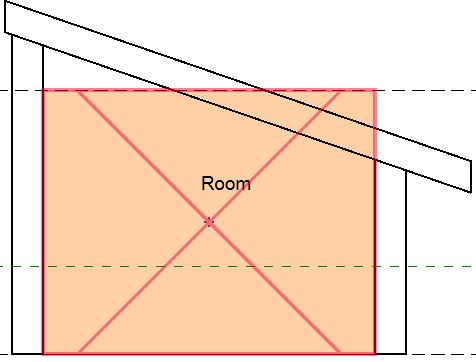
  • If the wall is slanted in towards the room, and the volume computation is by "Area Only" the room extents will align with the bottom corner of the wall, but will not be cropped by the wall

  • When the volume computation is changed to "Area and Volume" the room extents will align with the room and will be cropped by the wall (providing it is Room-Bounding)

If the Base Offset of the wall is raised above the base Level, the room extents are controlled not by the bottom corner of the wall but by the bottom corner of where the wall would be if it was set to Vertical - ie. where the wall face would meet the level if projected down.
  • That is another exception to teach

  • If the wall Location Line is not on the wall face (room side), but say on the wall centreline, there is another exception to an exception:
    • The room extents line up with the "bottom corner of where the wall would be if it was set to Vertical - this does not align with projecting the wall face down to the level"

  • By making the angle more extreme it can be seen more clearly

However, there is an exception to an exception to an exception:

  • If the volume computation is changed to "Area and Volume" and the Computation Height is below the Wall Offset height, the room is no longer enclosed - and you will get a warning message.


Computation Height

Things get even more complicated when you change the Computation Height.

You may remember that the Room extents are calculated at a certain height above the level on which the room is placed.  By default this height is zero - but your BIM Manager may have changed this in your project template.
  • The Computation Height is a property of the Level (not the room element).
  • This means that all rooms on a given level are calculated at the same height
  • If the volume computation is set to "Areas only" the room area will be calculated where the wall meets the computation height plane
  • The room will not be cropped in section - and your drawing will look terrible if you have a colour scheme in section.
  • If the volume computation is changed to "Area and Volume" the room is cropped in section and the volume is calculated
  • However, it only crops the room volume where the wall overlaps, which will give an accurate area but the wrong volume - as it does not extend the room outwards beyond the point where wall and computation plane meet.
At first glance this seems consistent with what happens when a sloping roof or floor meets a room volume - however, this situation is entirely different:
  • In the case of vertical extents the room height has properties to control that cutoff line
    • The user can intervene by changing the properties.
  • In the case of plan extents, they should be automatically calculated to the full extents of the volume enclosed
    • The user has no ability to override the extents.

If you have a combination of the following, I can't begin to explain what Revit will do - just look at the image to figure it out:
  • Wall Base Offset
  • Raised Computation Height
  • Room volume computation by "Area and Volume"
  • Slanted wall
  • Wall Location Line set to Centreline


Conclusion

I would hate to be teaching a new Revit User about all these inconsistencies and exceptions.

I believe that it would help the situation a lot if the following two problems were fixed:

1.  Pivot point of slanting walls should be from the actual base level of the wall, not from where the slanted wall edge meets the level.  Refer to Analysis of Slanted Walls in Revit 2021,

2.  When the volume computation is set to "Area and Volume" the room should be cropped in section for the whole height of a slanted wall - extending inwards and outwards from the computation height plane.  This would give more accurate volumes and would look a whole lot better on section views that have room colour schemes.


Friday, 26 June 2020

Analysis of Slanted Walls in Revit 2021

Any new modelling feature in Revit is welcome.  Although I have seldom needed to slant walls in a Revit model, it something that people occasionally want to do.  Now that you can easily slant walls in Revit 2021, we can expect to see a huge number of very scary looking buildings going up around the world (and hopefully not falling down).  Builders and structural engineers will probably be cursing Autodesk for years to come for this new feature!

For the first time in many years I did not do any beta testing of this "Shiny new feature" of Revit - so I do not yet know of its limitations or benefits.  I decided to do some very simple testing to see what the software engineers came up with.  Here are my preliminary findings:

Slanted Wall Angles

Once you place a wall in Revit 2021, it has a new property:
  • "Cross-Section" - this will be set to "Vertical"


Change the property to "Slanted" and it enables another new property:
  • Angle From Vertical
  • The angle will initially be set to zero

In a section view you can see the wall angle zero being vertical
  • In this example there is a room in section to the left of the wall
    • selected wall is purple
    • Room in section is pink
    • There is a vertical reference plane where they meet (green dashed line, not yet visible)
    • There are several detail lines (dashed) running from the base of the wall (inside face) up at 10, 30 and 45 degrees to vertical.

Wall Pivot

I was curious about the wall pivot point:
  • Set the angle to 30 degrees
    • Notice the edge of the room has moved back from the reference plane;
    • The wall pivot point is not the bottom left corner (inside face of the wall);
    • The inside face of the wall is not on the detail line.
  • On checking I realised that the wall 'Location Line' property was set to Wall Centerline
    • The wall is pivoting around its centreline base of wall
    • This is fair enough - but is a setting to watch out for
    • It becomes more obvious when the angle increases to 45

  • The wall thickness does not change but the horizontal dimension across its base line increases with the angle.


It is unlikely that you would want the wall centreline to be the rotation point as it is hard to predict where the inside face base will be from its original location (unless you resort to trigonometry).

To solve this:
  • Set the angle back to zero
  • Change the Location Line to 'Inside Face of Wall' (or Outside face if you want)

  • Change the angle and it will rotate around the inside face base of wall
    • Room edge stays on the original reference plane
    • Wall edge aligns with the slanted detail line

Change the angle again and it pivots as expected

So far, so good - even if a little tricky.
  • Behaves as expected, but is a trick for new players.

Base Offset

What happens when you change the base offset of the wall?
  • Try changing the base offset to 1 metre (1000mm)

  • Oops - the wall is still pivoting down at the level - not the base of the wall (ie. around where the wall base would be if it started down at the base constraint level).
    • That is very confusing

  • What happens if you combine a base offset and a wall centreline Location Line?
    • The end result will be almost unpredictable
    • The room extent is nowhere near the actual wall

I do not believe that this is the correct behaviour for the wall - I think it should pivot about the base offset height at whatever Location Line you have chosen.
  • This is really going to confuse people

[Edit - Plan Views added]

The diagrams above show what happens to the wall in section, so I have added a few snapshots of plan views to clarify (I hope) what to expect:
  • Vertical wall
  • Inside face of right hand wall on the reference plane
  • Right hand wall Slanted 45 degrees; Location Line Inside face; zero base offset
    • Note that base of wall has not moved (on the reference line):
  • Right hand wall Slanted 45 degrees; Location Line Wall Centreline; zero base offset
    • Note that the inside face of the base of the wall has moved slightly to left (in fact whole wall has moved) - due to pivot point being centre of wall):

  • Right hand wall Slanted 45 degrees; Location Line Inside Face; 700mm base offset
    • Base of wall moved 700mm to right
    • Apparent wall location is the same as the wall with zero base offset - but that is what happens at the cut plane height only (a notional drawing convention).  The important thing is that the base of the wall should not move when you slant the wall, but it does.


Conclusion:

Should I have done some beta testing and warned the software developers that this was not acceptable behaviour?

I have tried that with several new features in the past - sometimes they have modified things accordingly, but often not.  Often the beta testing process comes too late in the development cycle, and things like that cannot be changed before release.

Either way, I think it is wrong and should be fixed immediately - before people start using it on real projects.  Slanted walls will be scary enough without being built in completely the wrong location.

Next blog post I will be investigating slanted walls and room extents

And following that, 'Why the wall joins don't work in plan' . . . .


Friday, 19 June 2020

Installing Revit 2021 - more Space Junk

Last year I did an analysis of how much space Revit takes up during the download and install process for the latest version (2020.

Here follows an update for some of the changes in v2021:

Download and Extraction

The download file size is much the same as last year 15.7Gb - all sorts of useless stuff along with the small amount that I actually need for Revit itself!

The download/extraction process still needs 45Gb+ of free space on your hard disk - a challenge for me with a SSD of only 208Gb.   I forgot to read my notes from last year - the extraction process failed again as it needed just a bit more than 29Gb I had free after the download (15.7 + 29 = 44.7Gb total free).

Installation

Having completed the extraction process (by double clicking on the first downloaded file), it gave me an error message saying that it could not proceed with the install.  Well, that was fortunate because I don't want it to go straight from Extraction to Install - I see those as separate processes anyway.

The first step is to move the 7 downloaded files to safe place - off your hard disk to free up 15.7 Gb.  It is curious that the extracted files are also 15.7Gb - why are the downloads not in a compressed format?


Once the install process starts, it seems the same as previous years but there are some subtle differences:
  • Content is not automatically installed.

Content

The release notes make no mention whatsoever about the changes to the default installation of content - you either have to refer to Dan Stine's AEC Bytes article to find this, or dig deep in the Autodesk help file to find notes on the significant change to content installation.

  • What this means is that all the normal content that was previously installed with Revit is no longer done automatically.
  • Now it only installs the core content that is required to run Revit - templates and sample files.
  • Additional content can be added to the install process, but only for select countries:
    • US Base Families
    • UK Base Families
    • German Base Families
  • Additional content can also be installed later - using the 'Get Autodesk Content' command on the 'Insert' menu.


Install Settings

After choosing British English as the language (and it knows my location as Australia), you might expect the installer to know what content you might be interested in - but no, the default is for US Base Families.

  • NB. Make sure you don't miss the settings for Revit itself - the tiny drop-down arrow below the checkbox for Autodesk Revit 2021 - I did forget it this year, despite writing it up previously.
    • This should allow you to uncheck the MEP Fabrication options - assuming that you don't want them.

  • After changing the additional content from US to UK Base Families, the required space drops from 8.05Gb to 7.05Gb.  That makes you wonder what the rest of the world is missing out on relative to the extra 1Gb in the US supplied base families.

  • By default the Medium and Advanced materials libraries check-boxes are ticked.

  • The installer automatically picks up your country from the computer settings.

  • Once you start installing you get the usual pretty pictures that have less relevance to Revit with each passing year.

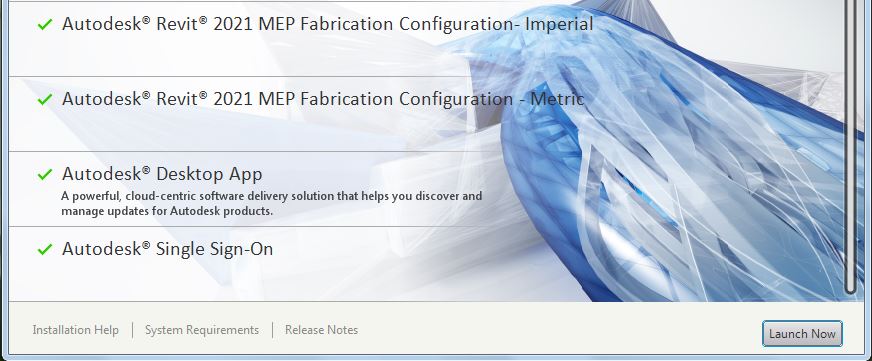
  • On completion, Revit tells you what it installed

  • This includes the things that you did not want it to install:

  • The next step is to remove those items that you don't want
    • A few years back Autodesk Desktop App was not working properly, so I always remove it - not sure if it works consistently now, but I always want to install updates in my own time, not as soon as they are released.  Remember the Revit 2020.2 "Internal Origin Debacle"!
    • As a BIM Manager you will want to control if and when point releases are installed - so you absolutely do not want users to click on yes to upgrades when they get prompted.

  • Having accidentally installed MEP Fabrication Imperial and Metric they do show up in the Programs list as separate elements, although only listed as 'content', with no mention of Fabrication - however, this may not be such a big deal as the files are small, so I only removed the Imperial content.

Space Junk

After installation there will be a huge amount of Autodesk "space junk" on your hard disk.  Most of this can be removed but this will be entirely at your own risk - it is advisable to make sure you have backups somewhere in case the files turn out to be required.

The install consumed over twice the 7.05Gb that it told me was required.


Here are some of the files that I found, which looked superfluous to me:

Steel Connections

  • Multiple Country folders

  • Removing all the except the country I chose saved 700 Mb

Templates

  • All those country templates cause 1.45Gb of bloat

  • The various discipline project templates may or may not be required depending on your company

  • Family templates are also bloated with countries other than those required

  • A quick tidy up removes 130 Mb of family templates


  • Install temp files were not automatically removed - all 2.7 Gb of them
  • There are also 110+ Mb of install log files, but I would not recommend removing those

Sample Files

  • Do we really need all these sample files to be installed in the Program Files directory?  All 571 Mb of them?  The largest 5 of them are 450 Mb worth of stuff I have never used - and those exist in each version of Revit that you have installed.
  • NB. I would recommend leaving at least the basic ones for your chosen discipline(s).

Country Code

This starts getting risky as you might accidentally delete something vital, but in the Program Files Revit 2021 folder there are another 420Mb of country-specific folders full of dlls


There is probably more space junk in there that you could remove, but it all takes time so I think I've reached the law of diminishing returns point - until the next time I want to install some Autodesk software!  Then I will need vast amounts of spare disk space again.

I don't think the writers of the installation software have any conception of the real world out there - they don't understand that taking the easy option for them is really annoying for end-users and BIM Managers.  It also wastes a huge amount of time for those of us who don't have endless disk capacity and actually want to minimise the amount of junk on our computers.

Next time - some of the interesting new features of Revit 2021 . . .  . .