BILT Speaker

BILT Speaker
RevitCat - Revit Consultant

Wednesday, 14 August 2013

Mona Lisa's Eyes Follow the Revit Camera Wherever it Goes

Using Adaptive Components to make Mona Lisa's whole face follow you around the room


Have you ever wanted to make all your 2.5d trees or people face the camera in a perspective view in Revit?  No?  Well I'm going to tell you how anyway - maybe it will help someone come up with new ideas of how to use this technique.

  • First create a new "Generic Adaptive Model" family;
  • Place two points along the X axis;
  • Select the points and make them adaptive;
  • Join the points with a reference line;

  • Set the workplane to be the vertical plane of the adaptive point (1) at the start of the reference lin, perpendicular to the line;

  • Alternatively you can pick the end workplane of the reference line itself;
  • Use model (or reference) lines to trace the 2d outline of a person;
  • Select the lines and create a form - an extrusion of the person outline;
 
  •  Select adaptive point 2, move it around to flex the family;
  • The person extrusion should remain perpendicular to the line, and it should rotate around to follow it (providing it was correctly associated with the work plane of point 1;
 

  • Return the adaptive points to the x axis location;
  • Add some model line detail (or more extrusions as desired), making sure that they are either hosted on the same workplane or on the form itself - in this case I have added a Mona Lisa face to make it more fun;
  • Flex the family again by moving adaptive point 2, to check that all geometry is correctly associated - in this case the face rotates but Mona Lisa's eyes will keep looking at you;

  • Now the Mona Lisa family is ready to use;
  • Load her into a project;
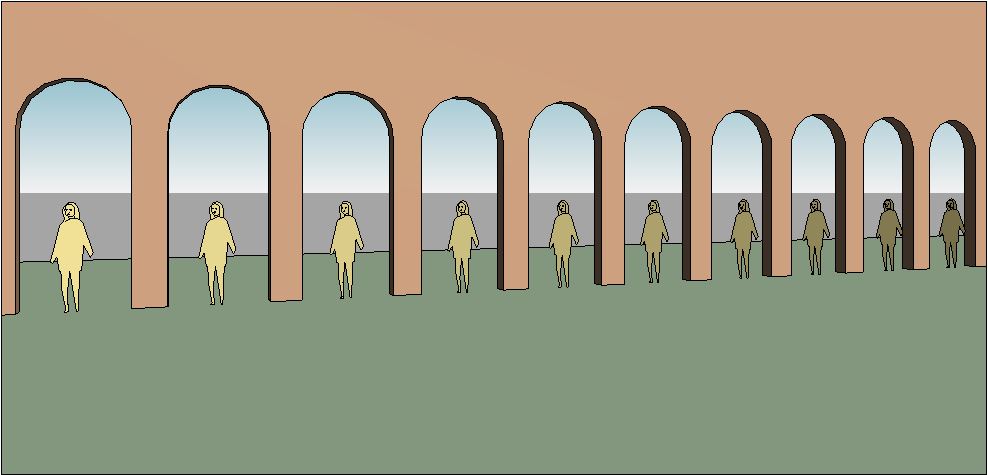
  • In this example I have created a series of arch doorways;
  • I have also created an object to represent the camera location - it can be any object, but the best thing would be to create a "camera family"


  • Place a Mona Lisa adaptive family - first point in the middle of an archway, second point snapping onto the camera object (important, it must snap to it)


  • Place a second Mona Lisa in the second archway, but snap its second point to the same camera object;
  • Place as many more Mona Lisas as you need, each sharing the same second point on the camera object;


  • Note how each Mona Lisa is slightly rotated, so that they are all looking at the camera object;
  • Now create a camera view, ensuring that the camera location is approximately the same as the camera object;
  • All the Mona Lisas will be facing the camera;
  • You might argue that her eyes would have been looking at the camera without rotating the whole body - true, but this technique will work for anyone other than Mona Lisa;  or for a tree or any other 2.5d (flat extrusion) entourage family;


  • Create another camera view from a completely different angle;
  • The Mona Lisas will no longer be facing the camera in this view


  • Check this out in plan view too - they are all still facing the first camera location;
  • Right-click on the second perspective view in the Project Browser, and select "Show Camera" to see where it is in plan;
  • Place a marker - eg a cross in plan;
  • Move the camera object to the new camera location;
  • All the Mona Lisas should rotate together to face the new camera position

This may seem like a clunky workflow, but once it is set up all it requires is a single move of the camera object to each view location - so its not going to work if you have several views on one sheet.

Of course all the people don't have to look the same - they just need two adaptive points to work.  Each person could have a parameter for a small rotational adjustment within the family to give some variation - each one could face slightly away from the camera, but close enough not to get any side on views of extrusions.  This would ensure that the scene does not look quite so artificial.

There is an alternative method of placing the people - more on that next time.

I hope this helps someone out, or inspires some new method of improving presentation methods in Revit . . . .


Thursday, 1 August 2013

Scaling Revit Families Nested in Curtain Panel Patterns

Credits First

This post would not have happened without discussions at RTC or blog posts by the following people:
What I am showing here is a development of all those ideas, combined with a concept that I came up with for my RTC presentation "Fractal Fun with Revit Repeaters" earlier this year - more on that at a later date.

How to trim the edges of a pattern of repeated scaleable Revit families

The image on the left above shows a repeated pattern of complex shapes within a regular rectangular boundary - relatively easy to achieve in Revit!  On the right the boundary has been trimmed, and the pattern gets trimmed with it - not so easy.
Add in the ability to scale the pattern elements and it gets a whole lot trickier. 

Kelvin Tam showed us how to nest a planting category family into another planting family and then nest again into a different category family - this allows us to use the ability of planting category to automatically scale any irregular shape without having to create complex formulas and controlling geometry (see link above).

David Light applied that technique to nesting planting categories into curtain wall panels to create arrays of scaleable science fiction monsters marching across the landscape.

Andy Milburn applied the same technique to creating Musharabiya screens out of curtain walls.  He noted that there was a limitation of not being able to trim the edges of the pattern because curtain wall panels won't be be cut.

To solve that problem I used Marcello Sgambelluri's technique of questioning which similar category or situation does Revit allow you to do what you want?  In this case I knew from my RTC presentation "Fractal Fun" research that Revit will cut the edges of curtain wall panel pattern families when applied to divided surfaces.  So we should be able to apply that principle here - the only limitation being that it must be done in the conceptual modelling or adaptive component environment.

Here is how to do it:
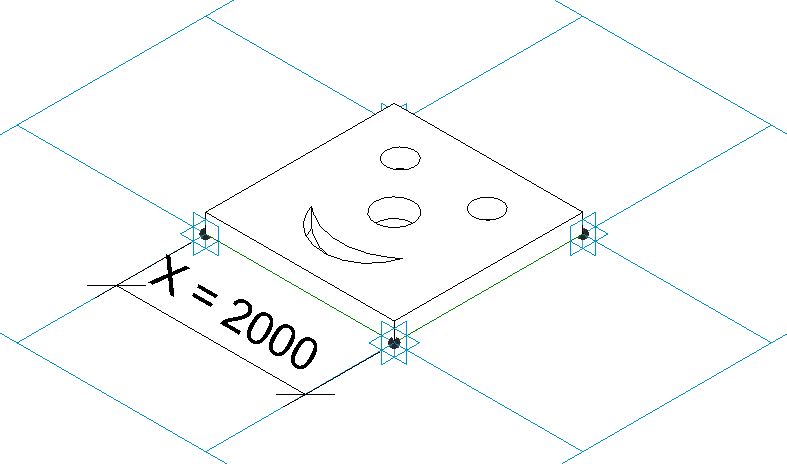
  • First start a new planting category family and create the desired pattern element within it - in this case a simple smiling face within a square (but it could be a complex geometric design).
  • Then start another new planting category family;
  • Load the first family into the second;  this is to make use of Revit's capability of automatically scaling plants and trees - it only works with nested families;
  • Start a new "Curtain Panel Pattern Based" family;
  • Place a dimension between two adjacent points; 
  • Make the dimension an instance reporting parameter 


  • Load the second planting family into it, and place it on the pattern.  You may need to devise a way to control the location of the component by hosting it on specific points
  • Select the planting family and link its "Height" parameter to the new reporting parameter in the pattern family;  you may need to add a formula to scale it up or down to match the size of the pattern grid (depending on the original family size) 
 

  • Create a new mass family or In-Place mass within a project;
  • create an irregular shaped form (can be a flat surface or an extruded shape);
  • Select a surface and divide it
  • Make sure the divided surface pattern is square and orthogonal - you may need to rotate the grid or set the spacing to fixed distance;
 
  • Load the curtain panel pattern family into the mass
  • Select the divided surface and change its type to the pattern family - it should automatically trim the pattern elements around the edges
  • NB. I think this did not work in the first version of the new conceptual massing in v2010?  but it seems to have been changed at some point since.
 
  • Depending on the grid spacing and location, Revit sometimes misses out small pieces or fails to trim elements that are hanging over the edge by only a small amount.

  • Occasionally it gets it quite wrong - in this example it was an in-place mass, which looked ok until the mass was "finished".


All this was done without tricky formulas - just by using the tools that Revit developers gave us, albeit not in ways that they expected us to use them.  There are obvious limitations of not being able to apply this to a normal curtain wall, so you have to use the massing tools to create a divided surface.

Obviously you aren't going to make smiley face patterns, but you should be able to apply these principles to real architectural design solutions.

Sunday, 28 July 2013

Revit Scaleable Spline Tree Family

Having returned from RTC in Vancouver a couple of weeks ago, I decided to put into practice some of the things that I learnt at the conference.  It was another great Revit conference in a fabulous location - Vancouver is a beautiful city, and the waterfront has been really well designed and carried out.  Aside from catching up with friends, I met lots of interesting people and attended plenty of good classes.  Although I attended Marcello Sgambelluri's class on scaling families at RTC in Auckland, it was also a big talking point in Vancouver.  I asked several people if they had attended the class, and many enthusiastic people had;  some others said that they did not want to see how to scale a Revit cow or elephant - well they missed out on a treat, because we learned many tricks that could be applied to totally different areas of Revit. 

Here is one idea that I have developed based on one of the methods that Marcello used to scale classical column families:
Marcello Sgambelluri - Scaling Classical Order of Columns

Scale By Spline

This concept has also been explored by others, notably
Andy Milburn - Spline Sailing

but I first need to describe the concept here. 

A spline can be scaled just by dragging one of its end points.  To control this within a scaleable Revit family, you need to lock or attach the end points of the spline to something that you can dimension.  Although you can dimension the end points directly, it is better to use something like a reference plane.  Here is a simple rig to demonstrate this process:
The vertical reference planes and width parameter will be used to control the distance between start and end of the spline, and in turn its scale.
The offset reference plane and parameter are required in order to control the location of the spline.
Once the rig is set up, draw a spline between the two top reference plane intersections

Use the align tool to lock the ends to the reference planes, in both directions (4 locks required)

Change the width parameter to check that the spline is locked to the vertical reference planes and that it scales properly.
Change the Offset parameter to check that the spline is locked to the horizontal reference plane.

This example establishes the principle of being able to control scaling and location of splines using reference planes.  The spline end points do not need to be orthogonal to each other - they can also be at an angle.

Revit Scaleable Spline Tree Family

We can now apply this principle to multiple splines linked to each other, to create a simple tree family.  This example is proof of concept, and is only done in 2D, but it could be applied to 3D trees.

First make a rig of reference planes that are controlled by parameters
Then draw a series of splines between each reference plane intersection.
Lock the ends of the splines to the intersections using the Align tool (and then padlock)
Try flexing the overall height parameter - this will not only change the overall height, but it will not affect the other parameters.  So only parts of the tree will scale, and others will not be affected depending on how the parameters are arranged.  In this example, the tree trunk is not affected by the change in height - only the top part of the tree scales.
Changing the intermediate parameters will alter the overall shape as well as the width
 Different tree forms can be achieved by playing around with the parameters
One tree family can be used to create multiple tree types that vary in shape and height
By adding a few more reference planes and splines it should be possible to create a family that has independant tree height and spread parameters.  And all this can be done without having to nest one planting family inside another - it works without nesting.

No doubt there will be people who say that this is not practicable, or that the trees look terrible - but this is only a proof of concept.  I'm hoping that it will give more ideas to others who can run with the concept and create wonderful flexible tree families.

Wednesday, 12 June 2013

Revit Step Pattern Repeaters Part 2

Further to my recent post of 6 June on Revit Step Pattern Repeaters, here are a couple more methods to achieve step repeaters:

Step Patterns Method 3

  • The previously created 1 point adaptive box could have an additional parameter added to it - to allow it to be offset to the right from its centrepoint origin.  At its simplest it just needs a parameter from centre to left side - if set at half the width value it will be centred;  if set at zero it will be offset by half its width.  You could put in a formula to make it offset using a checkbox but its not really necessary.


  • Create a new type that is offset to the right by half its width.
  • Place a centred type box on a node of the divided surface
  • Place an offset type box on the node above it on the next row

  • If you try to "repeat" this it will only create a linear pattern;  so you need to teach Revit what you want - place two additional boxes in a cluster of four (two of each type)

  • Select all four boxes and click on the "Repeater" (array) command to get a two directional step pattern.
  •  This will create four separate interlocking repeaters

  • The edges will not be finished correctly, so you need to create a new half width offset box and swap out the overhanging edge pieces.

  • NB. If you change the number of divisions on the surface, you cannot control where the half width types appear in the overall pattern.

Method 4

  • If you want to create something more complex than a box on a rectangular surface grid, you may need to create an adaptive component that has multiple adaptive placement points 
  • Although this example is still a box, it has 3 adaptive points - the first two set out the left hand edge, and the third point the bottom right corner and length (reporting parameter).  The overall box length is calculated at twice the length between the adaptive points 1 and 3
  •  The adaptive component needs to be placed on 3 nodes on the divided surface in the correct order

  •  If you repeat this component, it will make a rectangular pattern, which is not stepped.  So you need to place three more adaptive boxes in the final pattern that you require

  •  Select all four boxes and click on the repeat command - to get a step pattern

  • The edge boxes on the right hand side, need to be individually exchanged for half size boxes;  the left side needs to have new half-sized adaptive component boxes placed in alternate gaps.  It should be possible to place just the first two and then repeat them vertically.
 
  • Although this method is more complicated, the principle it shows would allow more complex patterns than the one point adaptives.  For example, if you taper the surface grid, the length of the box varies according to the node spacing


  • If you created a 4 point adaptive box, you could get it to distort itself to fit properly on a tapered grid

For methods 1 & 2 refer to previous post below:
Revit Step Pattern Repeaters

For information on how to achieve particular repeater patterns of adaptive components on a divided surface refer to:
Single Point Repeaters