BILT Speaker

BILT Speaker
RevitCat - Revit Consultant

Monday, 28 January 2013

Revit 2013 Stair Path Arrows


Here is another extract from my RTC presentation handout on the new Revit 2013 stair tools. I don't see any good help notes available out there on the topic of Stair Path Arrows, so I thought this might help clear up some confusion about the new method of showing stair arrows that was introduced in v2013:

Stair Path Arrows

The old Stair arrows were an integral part of the stair, and they certainly had their problems. The new stair arrows are actually done as separate annotation objects – and these come with a whole new set of problems. Each stair arrow is placed on a stair on a per view basis, meaning that the arrow is no longer part of the stair, but behaves more like a graphical tag – this means that you will no longer suffer from that old problem of stair arrows or labels from floors below showing through floor slabs. There are a number of issues to consider when managing the new stair path arrows:
  • Stair path types
  • Placing stair path arrows
  • Default stair path types
  • Moving stair arrows
  • Duplicating stair path arrows

Stair Path Types


There are two different system families for stair paths, and each of these can have multiple types that you can duplicate and change:

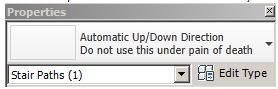
  • Automatic Up/Down Direction 


This will show an Up arrow and label on stairs going up from the current level, and a Down arrow for the top level of a stair;  the middle levels of multi-storey stairs show one up and one down arrow.  In many countries this type is never used, as it can cause confusion.  I have seen drawings where the text is lower case "up" and "dn";  rotate by 180 degrees and these are interchangeable - so if the drawing is read from the wrong direction the meaning of the letters is reversed (dangerous)!!


  • Fixed Up  Direction

This shows an Up arrow and label on all levels of a stair.  This is the standard method of annotating stair paths in many countries (including UK and Australia), but it may not be set as the default in the project template file.


Stair Path Properties

Each stair path has both instance and type properties, which will give you considerable control over how they appear on different views and at different scales.  Refer to Stair Paths at different scales for details on the individual properties.


Changing stair arrow types


  • When you create a stair it adds stair path arrow annotation to all relevant existing plan views that the stair shows in;
  • It will place the default path type for that project, which may be the Automatic Up/Down Direction Standard arrow (depending on how it was set in the original template, or if changed since then);
  • If this does not suit you, then you need to select the path arrow and change it to your preferred type (using the Type Selector);
  • BUT it will only change it on the view that you selected it on – all other views will still have the project default type (that includes views of other  levels of the same stair);
  • You could right-click and “Select all Instances in Project” and change them to the correct type, but this is not efficient as you’d need to do it every time you create a stair;
  • A better solution is to change the default:

Placing a Stair Path Arrow
If your stair does not have a path arrow in a particular view, then you need to place one:
  • From the Annotate tab select Stair Path (on the far right of the ribbon, grouped as a symbol, not a tag)
  • Check / change its type, eg “Fixed Up Direction” (from the Type Selector) before placing it;
  • Pick the stair

Setting the default stair path type
  • Place a stair (if you don’t already have one in the project);
  • Select the automatically generated stair path - if it is the correct one for your standards then you do not need to change the default.  However, if it is wrong, delete it;
  • From the Annotate Tab select new stair path, but be sure to change its type, eg “Fixed Up Direction” (from the Type Selector) before placing it;
  • From that point on, all newly placed stair paths in that project will be of that type, including automatically generated ones;
  • It would be wise to modify your standard project template, using this technique.  Don’t forget to  delete the stair from your template project before saving it.
  • NB. “Automatic Up/down” is a system family, so it cannot be deleted from a project.  You could always rename its type from “Standard” to “Do not use this type” in your project template file (or some such corporate standard threat).

Copying stair paths


  • When you create new views Revit does not add the stair paths in those views – there appears to be no way to force this;
  • Duplicate view does not copy stair path arrows (because they are annotation);
  • “Duplicate with Detailing” a view does copy stair path annotation, but of course it copies all the rest of the annotation too.
  • There is no middle way to duplicate a view and have it duplicate just the stair paths without any other annotation.  Theoretically you could Duplicate with Detailing, and then delete all the unwanted annotation from the view – but that is a workflow fraught with danger (not to be recommended, except for perfect users who have 100% understanding of the stair & annotation tools, and never have concentration lapses).
  • You cannot use “Tag all Untagged” for stair paths – although stair paths behave somewhat like tags, they are not actually tags.
  • You cannot copy and paste stair paths from one view to another (a bug);
  • You have to add stair paths to each stair in a new view one by one – it is the only way!

[Edit] How about we ask Autodesk to fix this (after 5 years)?  Please use these links to go to the Revit Ideas wishlist pages and vote up requests to fix these:
Moving Stair Paths


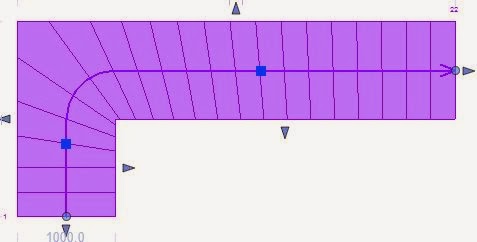
Stair paths are placed along the path line shown during editing a stair – usually along the centreline of the stair.  There are two ways to move them:


  • When you select a stair path, it shows two shape handle arrows.  These can be used to drag the paths off-centre.  If you drag it back, it will snap to the original path location.
  • If you require a path that is different from the simple one that is automatically generated – say you want to offset only one part of the arrow, you may need to “Convert to Sketch”  part of the stair, so that you could edit the location of the path line.  However, this is an operation that should not be undertaken unless you really have no choice, because once the stair components are converted, it is irreversible, and you would lose all the automatic functionality of the component.  In the example below, a complicated process is required just to offset one part of the path arrow – in this case it might be better to just create a manual stair arrow.   First the top run has to be converted, then the sketch has to be edited to move the run line, then the process needs to be repeated for the landing.   However, in this example, the landing and run might need to be sketch edited anyway, in order to get the supports to be correctly trimmed around the narrower part of the landing – this cannot be achieved using the shape handles on the landing.
 

  • Complex stair plans, such as 'T'-shapes will not create correct paths for both upper runs, so you will need to edit the landing sketch to get the path right

Mix ‘n’ Match Old and New Stair Annotation


In old stairs the path arrows and cut lines are an integral part of the stair, and their visibility and appearance can be somewhat controlled by instance and type properties.  New stair path arrows are purely annotation objects that can be placed per view.


The default settings for the new stair paths and cut lines make them look very similar to the old style ones (which could not be customised).  So you could have a mixture of old and new stairs in one project.  However, as soon as you start to change the look of either the new cut marks or stair path arrows then it will look very messy if you have a mixture of old and new stairs together.


Refer to Stair Paths at different scales for details on the individual properties.

Stair path arrows and View Types

Stair path arrows cannot be placed on Detail plan views


[Edit] How about we ask Autodesk to fix these two stair path arrow issues, since they have ignored my bug reports ?  Please use these links to go to the Revit Ideas wishlist pages and vote up requests to fix these:

Sunday, 9 December 2012

Revit v2013 Stair Shape Handles

Back in May 2012, I did a presentation at RTC on the new Revit 2013 stair tools. So far users have been giving a generally positive response to the new tools, but when they start delving into the detail of using them there are some tricky things going on. Here is an extract from my RTC presentation handout on the topic of the "Shape Handles" that come with the new tools:


Stair Component Shape Handles

                    
There are four different types of shape handles that you get on stairs, and they each behave differently to each other, and their methodology also depends on the situation and whether other components are joined to the selected stair component. You can only see these shape handles when you select a stair component.

1.   Arrow handles at base of run
  
This arrow handle will move the location of the first riser in the run. If it is a run linked to another run by a landing, it will add/remove risers to the base of a run; it will also remove/add the same number of risers from the top of the top run of the series of linked components in a stair. Hence the overall number of risers will be maintained using this method.
It will move the location of the first riser in the run according to the following rules:
    • For unlinked single run stairs it will move the riser by the exact distance the arrow is dragged;
    • For stair runs that are linked by landings to other runs, it will move the riser in plan in increments of the tread width (closest to where you drop the arrow); if you drag it less than half a tread width, it will not change anything;
    • Spiral stairs follow the same rules as straight runs;
    • Winder stairs follow the same rules, but usually you will only have one run (not linked) so it will try to move to exactly where the arrow is dragged to (not tread increments); however, if your winder stair is single-point, you will almost certainly get an error message if you try to drag the arrow handles because it cannot maintain the number of parallel treads that you have set on each leg of the winder.
    • Refer to Winder Stairs for how to get around this issue.

      2.   Round Dot handles at base of run
       
      This dot has two functions:
      a). It will allow you to swing the run around to a different angle, rotating around the other end of the run. Be very careful with this, for two reasons:
      • It moves off its original axis far too easily – it only stays locked to the axis when the cursor stays within about one degree;
      • Once it goes off axis, it is difficult to move it back – in v2013 it will not automatically snap to axis, even if it looks close. The solution is to put in a reference plane and snap to it, or use the Align tool.
      b). Dragging the round dot parallel to the run direction will add/remove risers to the base of a run; it will not remove/add any risers from the top of the run. Use this handle with extreme caution because it will also change the “Relative Base Height” of the run, meaning that the base of the stair run can be accidentally raised above the overall stair base – it may not become obvious until much later .
      • It will also change the riser number that you see above the first riser when in edit mode (normally "1"). You cannot change this number directly, even though it displays in blue when the run is selected.
      • Once you have raised the base of the stairs, there are only two ways to change it back (apart from Undo) – these will effectively “Undo” the change: You can drag the dot shape handle back to where it was originally (the number will return to 1); or you can change the Relative Base Height back to zero – this will move the riser to its original position in plan and reset the riser number to 1. You cannot move the run down vertically in a section view to correct the base height.
      • The only situation where you might legitimately use this handle to remove risers from the base of a stair run would be if the selected run is no longer to be the lowest one – for example when you want to add another run (and landing) below it.

      3.   Arrow handles at side of stair run
             
      These handles can be used to change the width of the selected run (and probably a linked landing component along with it).
      NB the side shape handles will always drag only that side of the run, even if the location line is set to “Center”, so the other side is never affected – this is not consistent with the way the Run Width instance property behaves.
      4.   Arrow handles at top of run  
                
      This arrow will add/remove risers to the top of a run; it will also remove/add the same number of risers from the base of the run (if not linked) or base of the lowest run of series of linked components in a stair. Hence the overall number of risers will be maintained using this method. Be aware that if you use this shape handle the plan location of the first riser of your stair will move in plan – if you don’t want that result, use another method of modifying the stair.

      5.   Round Dot handles at top of run
           
      This dot has two functions:
      a). It will allow you to swing the run around to a different angle, rotating around the other end of the run. Be very careful with this, for the same reasons as the dot handle at the base of the run (snapping and locking to orthogonal).

      b). This dot will add/remove risers to the top of a run; it will not remove/add any risers from the base of the run or stair. It will also change the riser number that you see above the last riser when in edit mode (eg. "23") – if you go above the required number of risers (set in stair instance properties), it will show that number plus the extras (eg. “23 + 1”). This method is usually quite safe to use, as it is easy to adjust later.

      6.   Arrow shape handles on Landing Components

      When you select a landing it has several shape handle arrows. This was changed in v2014 with the addition of handles where the run and landing meet.Refer to Landings for more information
      • Landing side arrows. You can use a side arrow shape handle to make a landing width greater than that set by adjacent runs, but it will not let you make it less
       
      • Landing Depth. 
        For a dogleg landing the shape handle on the outside face can be used to make the landing depth greater that the adjacent run widths.  In v2013 it cannot be made less than the narrowest adjacent run.  In v2014 it allows any landing depth - so you will need to use reference planes to make it accurate


      • Stairwell Shape Handle Arrows. 
        If the two adjacent runs align, there will only be one stairwell handle - this can be used to drag the stairwell to cut into the landing;  in v2013 the landing depth will be maintained so the outside edge will move out;  in v2014 the landing depth will change (outside of landing will not move, so be careful that your landing depth is adequate).
        Once you have created a staggered landing (runs do not align) or a stairwell cutout in the landing, you will get one or two more shape handles on the sides of the landing stairwell.  These can be used to make that section of the landing wider than the adjacent run (but never smaller), although I can't imagine anyone wanting to do this

      7.   Circle handle in the middle of a curved stair run

         
      This circle will adjust the radius of the arc defining the centreline of the stair run. It does not change position with the location line – it is always the centreline of the stair. This is the only way to change the radius of a curved stair in v2013. This will currently (in v2013 & 2014) not snap to any increments or elements, which renders it effectively useless – hence you cannot accurately change a curved stair radius after placing it!!! In v2014 the temporary dimension has been activated so that you can now accurately change the stair radius by that method only. Refer to Curved Stairs for more information

      8.  Square shape handle on winder stairs   
                                                   
      This square handle will adjust the location of the selected leg of a winder stair. If your winder stair is single-point, you will almost certainly get an error message if you try to drag the square handle – this is because it cannot maintain the number of parallel treads that you have set on each leg of the winder, so you may need to set those values back to one before dragging the shape handle. The placement of these handles does depend on the location line of the stair (left, center, right). Refer to Winder Stairs for more information

      Sketch Components

      • Stair components created by the sketch method will not have shape handles.
      • Once you convert a stair component to a sketch, you will lose the ability to adjust the component using shape handles.
      • No shape handles will appear after selecting a sketch component

      In summary:

      Some shape handles are easy to use, with logical results; but not others - you may get unexpected results, or it may be very hard to control the end location. It all depends on the situation. Sometimes you can’t use shape handles at all, and have to use the move command instead. This is the first iteration of these shape handles with the new stair tools, and hopefully they will improve in usability with future releases.

      Sunday, 18 November 2012

      Revit Multiple Host Repeater Patterns


      Two Point Repeaters on Divided Surfaces and Divided Paths in Revit

      Last time we looked at two point adaptive components hosted on a single divided surface, and turning them into "Repeaters" in Revit 2013.  The different patterns that can be achieved in a Repeater are often surprising, and usually difficult to predict until you understand the rules that they follow.  The images from sample repeaters shown here help to figure out those rules, although one example in the previous post defied the logic that I had figured out.   It starts getting even more interesting with two point adaptive components when they are hosted on nodes of two separate divided paths and surfaces.
      In the images below, the original hosted component is shown on the left, and the resultant repeater shown on the right:

      Single Divided Surface and Divided Path

      A two point adaptive component hosted on nodes of a separate divided path and surface will repeat in a single direction, quite unlike a single component on a single surface, which repeats in both directions.  It is not clear how Revit decides which direction to repeat on the surface – in this example it goes vertically:


      Reversing the direction of the adaptive component makes no difference to the pattern, it just changes the adaptive component itself (if it is not symmetrical between points 1 and 2).


      Rehosting the adaptive point on the surface also makes no difference to the orientation of the pattern, it just changes the location of the vertical pattern, and in this example it stretches the adaptive component more:

      So, what if we want the pattern on the surface to be horizontal?  Maybe rotating the grid by 90 degrees on the surface will do the trick (by changing the instance property “All Grid Rotation” of the surface)?  Well, not exactly because although it does make it horizontal, it goes in the wrong direction – reverse to the divided path on the spline:

      Rehosting the point of the adaptive component on the surface makes no difference to the direction of the repeat wherever it is placed – it still crosses over itself, so it obviously is not affected by the relative position of the hosted nodes (unlike when it is on a single surface):
        
      We’ll try doing the opposite of what we expect to work, and rotate the surface grid by negative 90 (or 270 degrees) – Bingo, it works.  Ok, this means it is using mathematical rotation (anti-clockwise), rather than compass rotation (clockwise), which is logical, but my brain learnt about compass rotation first, and never naturally thinks the other way despite years of working with computers :

      There is another way to control the direction of the pattern, but it gives a slightly different result.  By placing two adaptive components on adjacent nodes on the surface and path, it tells Revit exactly what you want – however it actually creates two interlocking repeaters rather than one.  This is a different rule to the situation when a repeater is created by two adjacent single point adaptive components (only one repeater is generated):

      Using this method allows you to generate a diagonal pattern on the surface:

      It also allows you to precisely control the spacing of components in the pattern:  
        
      Note that it only creates as many repeats as it can using the lesser number of available nodes it finds in either direction, depending on the spacing of the two components – in the first example below it is dictated by the surface, and the second example by the spline divided path:


      When two adjacent components share one node it gives quite a different result, more like a radial pattern.  It is actually using the same logic – just using a spacing of zero in this example:

      You can place additional adaptive components (you must select all when creating the repeater).  The resulting repeater patterns are a little confusing – in this example it creates three interlocking repeaters from three original hosted components; the adaptive points are on adjacent nodes, but the resulting patterns go every second node in the vertical direction, and every third node in the horizontal:

      When two of the components share a node, the resultant spacing is changed – it looks like the repeaters are sharing nodes, but in fact they are not.  It seems like each repeater takes the total number of adjacent nodes used for hosting in each direction, and uses that number plus one for its own spacing.  In this example the total number of occupied nodes in each direction is two, so each repeater has a spacing of three nodes in both directions:

      It is also possible to use components with more than two adaptive points, and to host on more varied combinations of divided surfaces, paths and points.  Next time . . . .